How to Manage your LLM Teams using MLflow's Role-Based Access Control

Your AI team is running smoothly; prompt engineers are tinkering with system prompts, eval researchers are running test scenarios with the help of judges using their evaluation flows, and platform engineers are managing the AI Gateway endpoints at the same time. All your work is centrally logged on one MLflow server.
Then suddenly, something breaks. One of your team members deletes the live system prompt, and suddenly three tools depend on that prompt break. One of the short-term hires, for the first time working with your team, accidentally accesses the confidential test data. One of the AI Gateway endpoints is updated, even though this person isn't supposed to have permissions to modify it.
If these situations seem familiar, you are definitely not alone. And these situations are exactly why we're excited to release the MLflow Role-Based Access Control (RBAC).
Traditional permissions fall short for LLM Teams
Most traditional ML teams are small and insular with maybe 3 or 4 data scientists who cycle through sharing model experiments with each other. However, teams working with LLMs or agent workflows often look very different. Take a modern AI workflow, it probably involves something like:
- Prompt engineers tweaking prompts and templates within your Prompt Registry.
- Eval researchers testing your models and running scorers against traces.
- AI Gateway operators keeping track of your endpoints, secrets, and model definitions.
- Platform engineers who need to administer the MLflow deployment itself.
- Temps (temporary employees, external contractors, etc. Who aren't part of your org and only need read access for a limited scope).
Before MLflow's permissions model got its update, every permission grant needed to be an individual explicit call like: create_experiment_permission() for each user and resource. If you have three users who only need to access a single experiment, this is fine. When you have a team that is dealing with multiple prompts, scoring tools, gateways, and tests with wildly different permission needs, managing this on your own becomes messy very quickly. The bigger the team gets, the more subtle the chances for unintended permissions usage.
What RBAC provides
Reusability of roles: Create the "prompt editor" role once. Then assign that role to whoever needs to edit your prompts. If you hire someone new, or somebody leaves the team, all you need to do is add/remove that user to the "prompt editor" role. You won't have to go into each one of the dozens of different prompt roles you've made for your teams.
Tomorrow's resources are automatically covered today: Roles are associated with a resource_pattern, which will determine which resources are accessible to those who have that role. For instance, you can assign the (prompt, *, EDIT) role to whoever should be able to edit prompts. This grants the user editing abilities for all of your current and future prompts! This wildcard will be resolved within that specific role's workspace (meaning your prompt edit access won't bleed into another team's prompt library). Your access automatically stays up to date.
Note: In the UI, the wildcard
*is exposed asall.
Four intuitive permission levels:
| Permission | Can Read | Can Use | Can Update | Can Delete | Can Manage Permissions |
|---|---|---|---|---|---|
READ | ✅ | ❌ | ❌ | ❌ | ❌ |
USE | ✅ | ✅ | ❌ | ❌ | ❌ |
EDIT | ✅ | ✅ | ✅ | ❌ | ❌ |
MANAGE | ✅ | ✅ | ✅ | ✅ | ✅ |
Note:
USEcovers consuming a resource without modifying it (invoking a Gateway endpoint, referencing a model definition, or creating new resources within a workspace.) Creating new resources rides along withUSE, notEDIT, it's an additive right, not a modify-in-place one, which is why there's no separate "create" column.EDITdoes not include delete; onlyMANAGEdoes.
Mapping LLM Team Roles to MLflow Permissions
Here's how a typical AI team maps into MLflow roles:
| Team Member | Permissions |
|---|---|
| Prompt engineer | EDIT on prompts, READ on experiments |
| Eval researcher | READ on experiments, USE on scorers |
| Gateway operator | MANAGE on AI Gateway resources |
| External helper | READ on experiment 42 only |
| Team lead | MANAGE across the workspace |
Getting Started - Creating Roles and Assigning Them
1. Server Setup
To get started using RBAC in MLflow, the server must be running with auth enabled:
mlflow server --app-name basic-auth
Recommended: If you need to create multiple siloed workspaces for multiple teams, add the --enable-workspaces flag:
mlflow server --app-name basic-auth --enable-workspaces
2. Configuring Admin Auth
The best practice is to have your credentials in the environment variables or in a .mlflow file at ~/.mlflow/credentials. However, for the sake of simplicity, in this example we are hardcoding the authentication inside the python script:
import os
os.environ["MLFLOW_TRACKING_USERNAME"] = "your_username" # admin default is 'admin'
os.environ["MLFLOW_TRACKING_PASSWORD"] = "your_password" # admin default is 'password1234'

mlflow.set_tracking_uri("http://localhost:5000")
3. Loading the Auth Client
The auth client allows the creation and management of users and their credentials.
auth_client = get_app_client("basic-auth", tracking_uri="http://localhost:5000")
4. Creating Roles
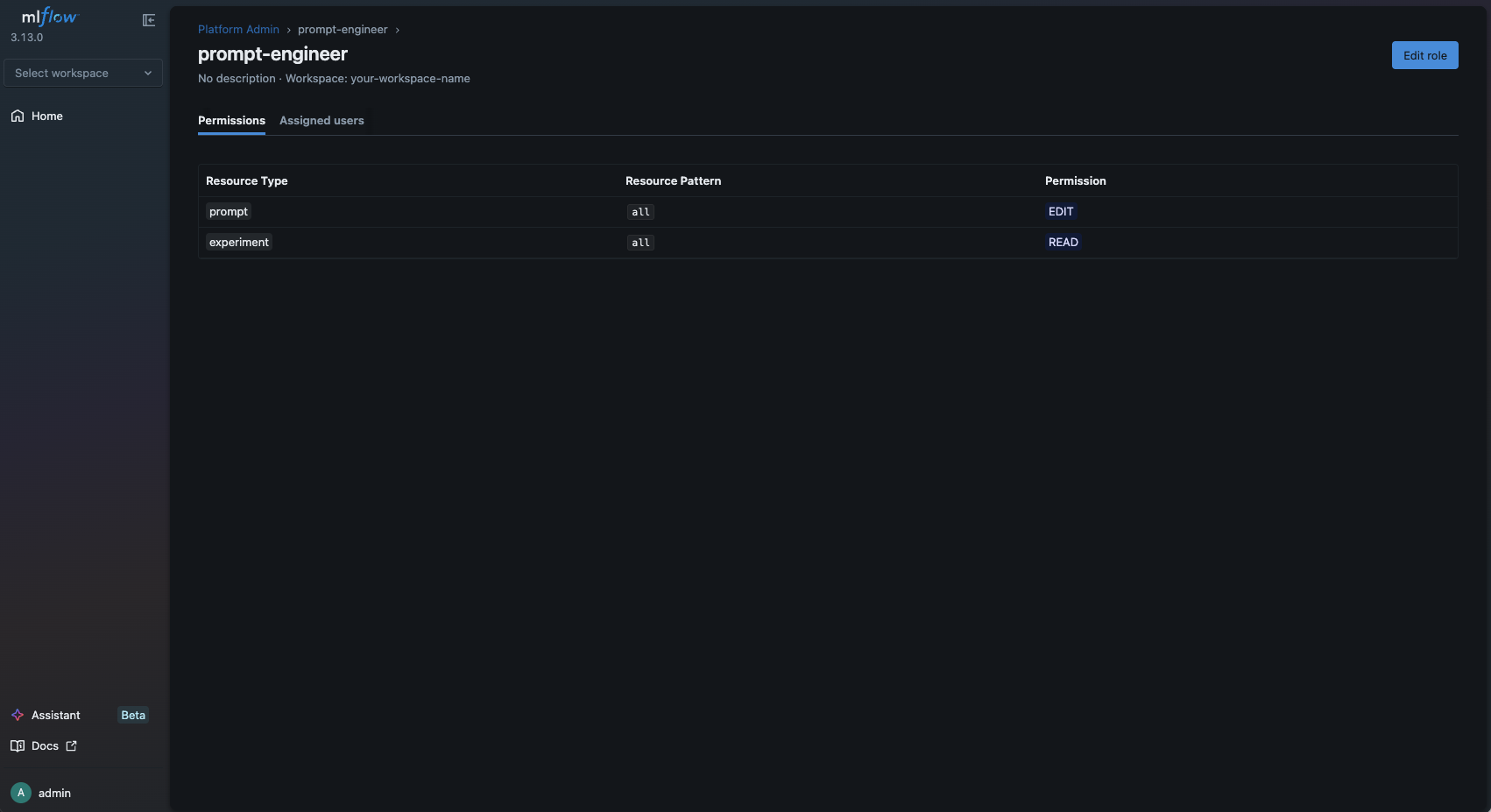
prompt_engineer_role = auth_client.create_role(
    workspace="your-workspace-name",
    name="prompt-engineer",
)
auth_client.add_role_permission(
    role_id=prompt_engineer_role.id,
    resource_type="prompt",
    resource_pattern="*",   # wildcard: covers also the prompts created later
    permission="EDIT",
)
auth_client.add_role_permission(
    role_id=prompt_engineer_role.id,
    resource_type="experiment",
    resource_pattern="*",
    permission="READ",
)


experiment_reader_role = auth_client.create_role(
    workspace="your-workspace-name",
    name="experiment-reader",
)
auth_client.add_role_permission(
    role_id=experiment_reader_role.id,
    resource_type="experiment",
    resource_pattern="*",
    permission="READ",
)
5. Assigning Roles to Users
for user in ("alice", "bob", "carol"):
    auth_client.assign_role(username=user, role_id=prompt_engineer_role.id)


for user in ("john", "lisa"):
    auth_client.assign_role(username=user, role_id=experiment_reader_role.id)
In other words, the following month, when a new prompt engineer joins your team, you only need to review a single role definition (and not a whole stack of 40+ resource calls) in your permission audit for prompt engineers, and it doesn't become a huge mess to add a new employee.
Isolate Different Teams on One MLflow Server
In practice, an MLflow server would often be used by multiple AI teams at the same time (e.g. A team for search tools, a team for customer support tools). Starting MLflow with --enable-workspaces will give each team isolated space for prompts, experiments, scorers, and Gateway resources.
An engineer, therefore, either belongs to the "search-AI" workspace, or to the "customer-support-AI" workspace (not both, unless explicitly given access to both).
In practice, it means you have a single MLflow deployment to manage, but it's supporting several A.I. Teams that can each manage their own workspace and don't collide with each other.
User Tiers
RBAC establishes 3 different types of users:
| Tier | How It Works | Capabilities |
|---|---|---|
| Platform Admin | is_admin = true on the user record | Unrestricted system-wide access. Only tier that can delete users or perform bulk operations. |
| Workspace Manager | Holds (workspace, *, MANAGE) via a role | Full authority within their workspace: create roles, manage users, assign permissions. Cannot cross into other workspaces or perform system-wide actions. |
| Regular User | Any other authenticated identity | Access determined entirely by role-derived permissions. No admin UI access. |
Migrating from Legacy Permissions (Pre-3.13)
A key thing to note if you are upgrading from an MLflow version before 3.13 is that the legacy per-resource permissions have been removed (like create_experiment_permission()). When upgrading, the DB migration backfills the permissions into the new role_permissions table, keeping the consistency without any breaks.
Key API change:
# Old (removed):
#   auth_client.create_experiment_permission(experiment_id, username, "EDIT")

# New:
auth_client.grant_user_permission(username, "experiment", experiment_id, "EDIT")
How Permission Resolution Works
When a user tries to access a resource, MLflow resolves their effective permission in this order:
- Platform Admin: If
is_admin = true, access is granted immediately. - Role-derived grants: All roles the user holds in the current workspace contribute. Matching grants combine via a max operation:
MANAGE > EDIT > USE > READ. A(workspace, *, MANAGE)grant confers management of everything in that workspace. - Default permission floor:
- Without
--enable-workspaces: The default permission floor isREADand it is applied as a floor when no role grant matches a specific resource. - With
--enable-workspaces: In multi-workspace mode, we still need to grant a user (WORKSAPCE, *, USE) to confer workspace membership (see RBAC permission resolution docs.) With this, the user will get the ability to create resources in addition to thedefault_permissionwhich could be set to either:READ(default)NO_PERMISSION: In this case, getting access to the workspace only allows creating resources but does not grant visibility into existing ones.
Important: In RBAC, there is no explicit way to deny a permission. If you want to restrict access, you would need to grant more narrowly rather than adding exceptions.
Direct Permissions (Without a Role)
For one-user, one-resource scenarios, you can grant permissions directly — without creating a named role:
# Give Alice EDIT access to experiment 42
auth_client.grant_user_permission("alice", "experiment", "42", "EDIT")
These calls are gated by per-resource MANAGE — meaning an experiment owner with (experiment, 42, MANAGE) can grant access to others even without workspace-wide management rights. Behind the scenes, these go into a reserved per-user role, but that's an implementation detail you never touch.
Reference: AuthServiceClient Methods
| Method | Purpose |
|---|---|
create_role(workspace, name, description?) | Create a new role |
delete_role(role_id) | Delete a role |
update_role(role_id, name?, description?) | Update role metadata |
add_role_permission(role_id, resource_type, resource_pattern, permission) | Add a grant to a role |
update_role_permission(role_permission_id, permission) | Change an existing grant's level |
remove_role_permission(role_permission_id) | Remove a grant from a role |
assign_role(username, role_id) | Assign a user to a role |
unassign_role(username, role_id) | Remove a user from a role |
grant_user_permission(username, resource_type, resource_id, permission) | Grant direct access to one resource |
revoke_user_permission(username, resource_type, resource_id) | Revoke direct access |
get_user_permission(username, resource_type, resource_id) | Check effective permission for a user on a resource |
list_roles(workspace) | List roles in a workspace |
list_all_roles() | List every role across every workspace |
list_role_permissions(role_id) | List grants inside a role |
list_role_users(role_id) | List users assigned to a role |
list_user_roles(username) | List roles assigned to a user |
create_user(username, password) | Create a new user |
delete_user(username) | Delete a user (Platform Admin only) |
update_user_admin(username, is_admin) | Promote or demote a Platform Admin |
The Bigger Picture
Moving quickly with large language models requires systems that scale with your team, managing increased work and increased users. Role-based controls move the focus from an emergency patch-and-forget on permissions to an integrated component.
For complete details, refer to the official MLflow RBAC documentation.
Questions or feedback? Drop a note by opening an issue or join the MLflow community discussions.
⭐ Star us on GitHub — show your support for the project!