Review Queues
Review queues turn ad-hoc human review into a structured workflow. You bundle a set of traces into a named queue, attach the questions you want answered, assign the queue to one or more reviewers, and let them work through it trace by trace. Every answer is logged back onto the trace, so the review effort feeds directly into evaluation.
Review queues are experimental (added in MLflow 3.14.0) and may change in a future release.
What is a Review Queue?
A review queue is a named collection of traces, scoped to an experiment, that a defined set of reviewers works through together. Reviewers answer the same well-defined questions on every trace (so results are comparable and aggregatable), the shared status keeps the team from reviewing the same trace twice, and every answer is logged straight back onto the trace so it is immediately reusable in evaluation. Three building blocks make up the workflow:
Review Questions
The questions reviewers answer on each trace: a Pass/Fail toggle, a categorical choice, a numeric score, or free text.
Review Queues
A bundle of traces, the questions to ask, and the reviewers assigned to work through them.
Shared Review Status
Each trace is pending, complete, or declined, shared across reviewers, so the first to finish a trace clears it for the whole team.
Prerequisites
- MLflow 3.14.0 or later.
- An MLflow tracking server (or local tracking setup) with traces already logged to an experiment.
- To assign reviews using a user name, run the tracking server with authentication enabled. On a server without authentication, reviews are attributed to a single
defaultuser and reviewer assignment is hidden, so use a custom queue instead.
Assign traces to reviewers
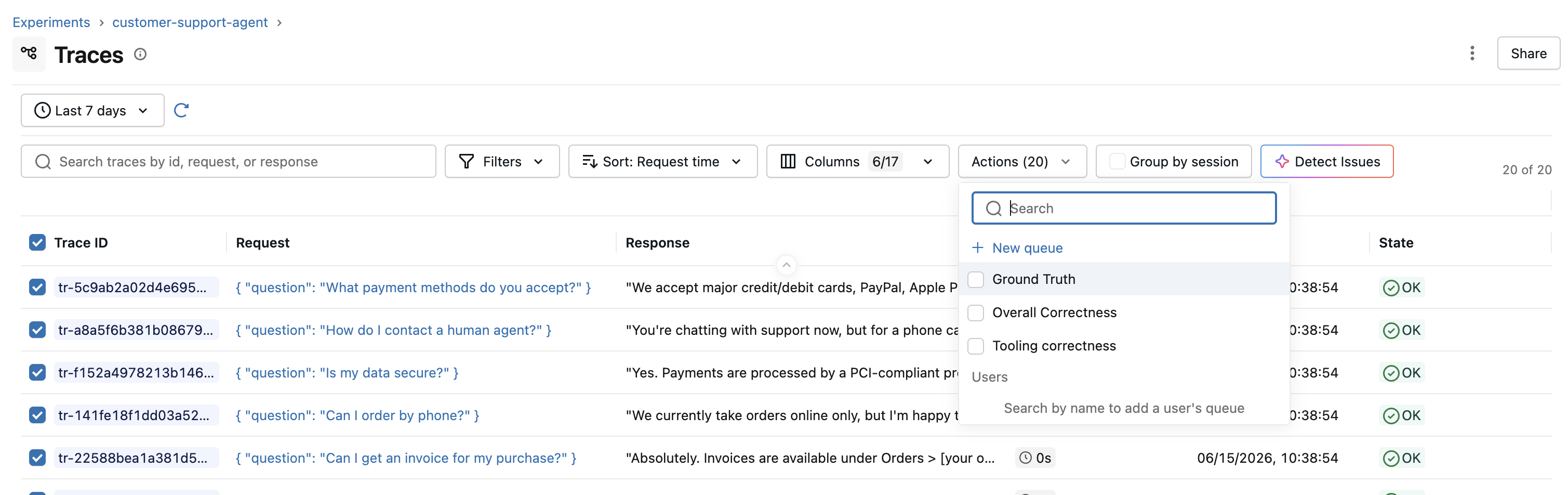
The quickest way to get traces reviewed: from the trace table (or an open trace), select the traces, click Flag for review, and pick one or more reviewers. Each trace lands in that reviewer's personal queue, where they answer the experiment's review questions. (On a server without authentication, direct reviewer assignment isn't available. Use a custom queue instead, described below.)
Review traces in the UI
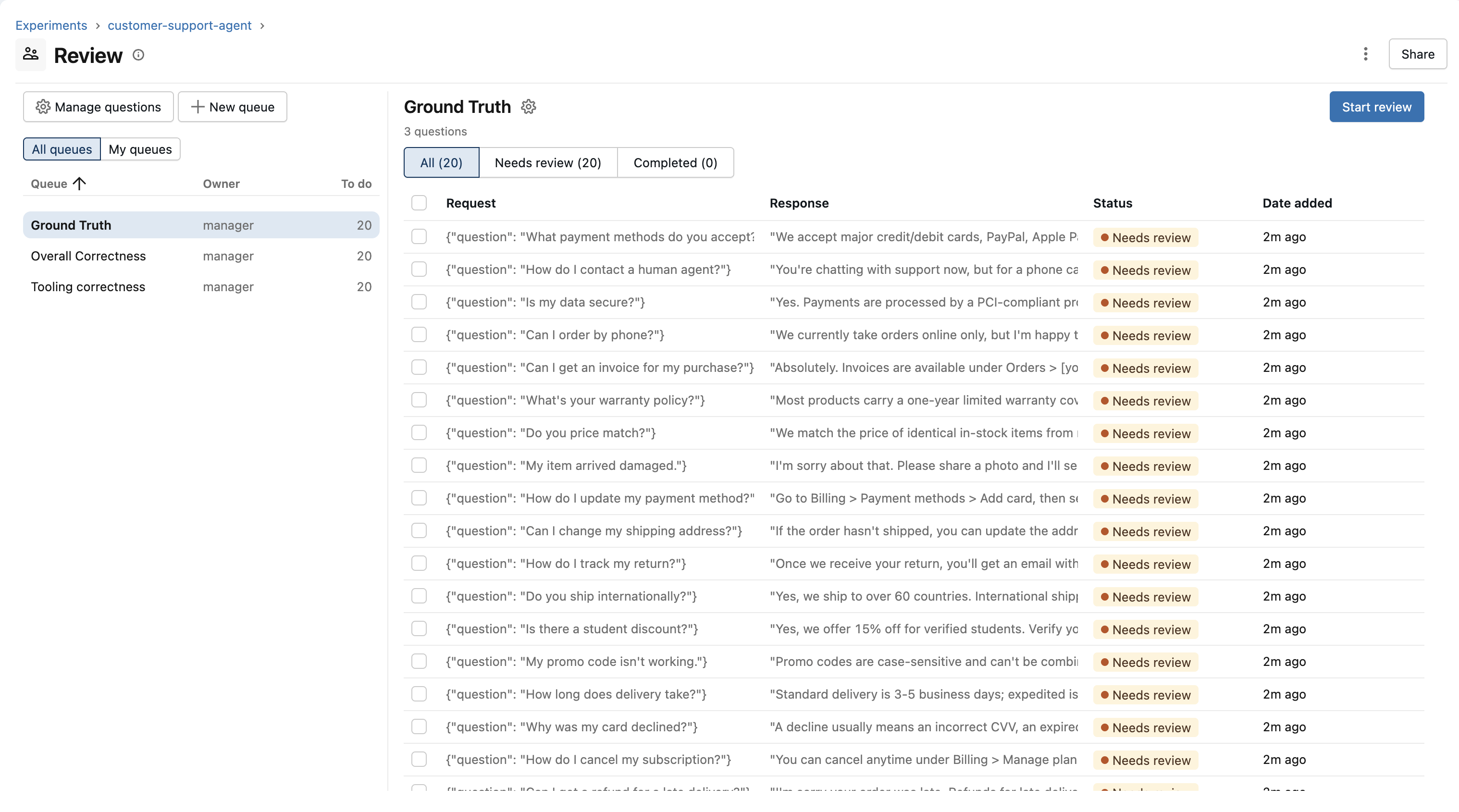
Reviewers find the work assigned to them under the experiment's Review tab. Selecting a queue lists its traces with their review status and how many are still to do.
Selecting a trace opens the focused review page: the trace's input and output in the main pane (with View full trace for the complete trace explorer) and the review questions in a panel on the right.
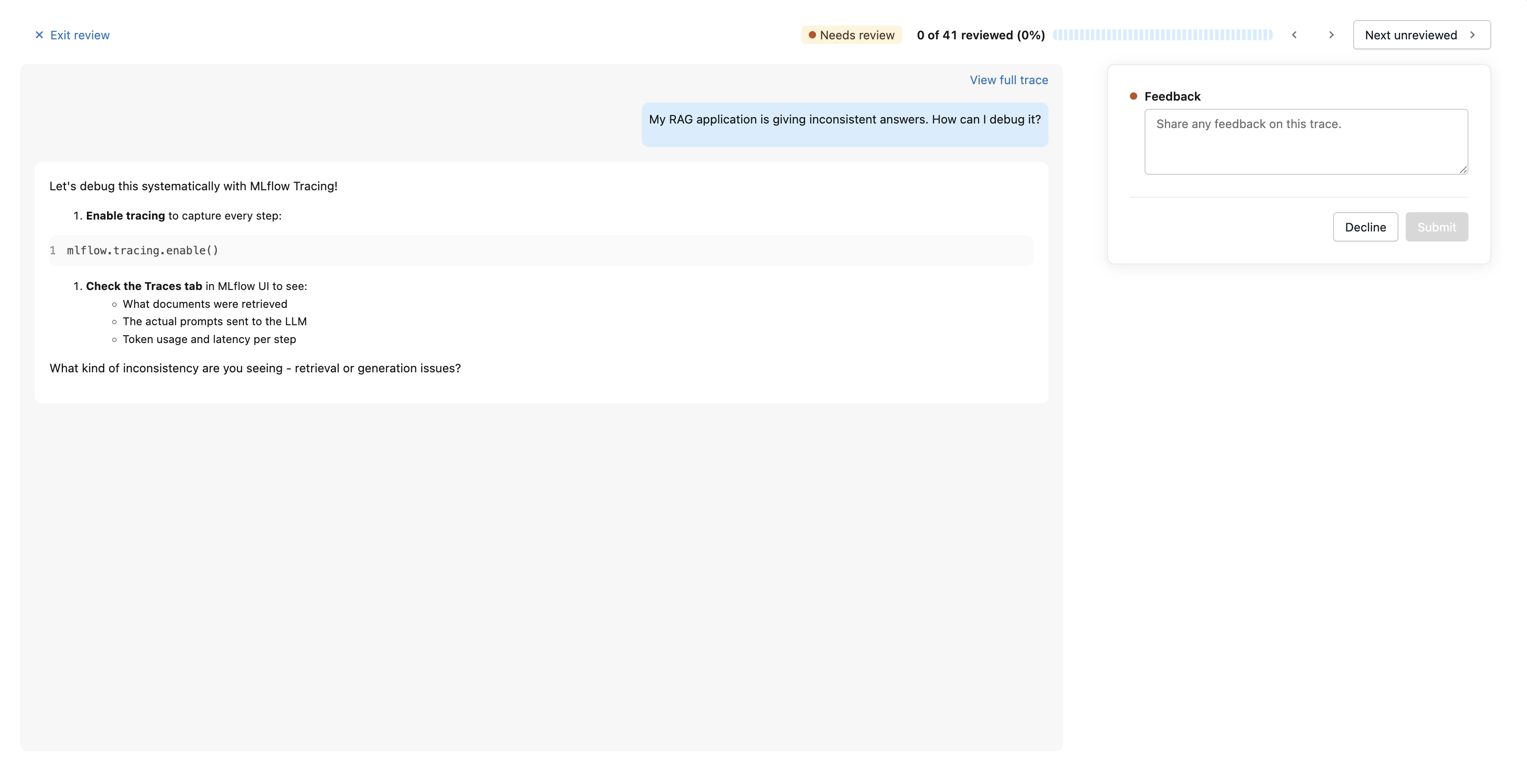
From here a reviewer can:
- Submit their answers to mark the trace complete (a single Pass/Fail question submits as soon as it's picked).
- Decline a trace that was added to the queue by mistake.
- Re-open a completed answer, edit it, and Save changes in place, or use Move to Todo to send the trace back to the pending pool.
Because the status is shared across the queue, the first reviewer to complete a trace clears it for everyone, with completed_by recording who did it.
Create a custom queue
When you want a curated, shared queue that asks a specific set of questions (or you're on a server without authentication), create a custom queue instead of assigning to individual reviewers.
Step 1. Define your review questions.
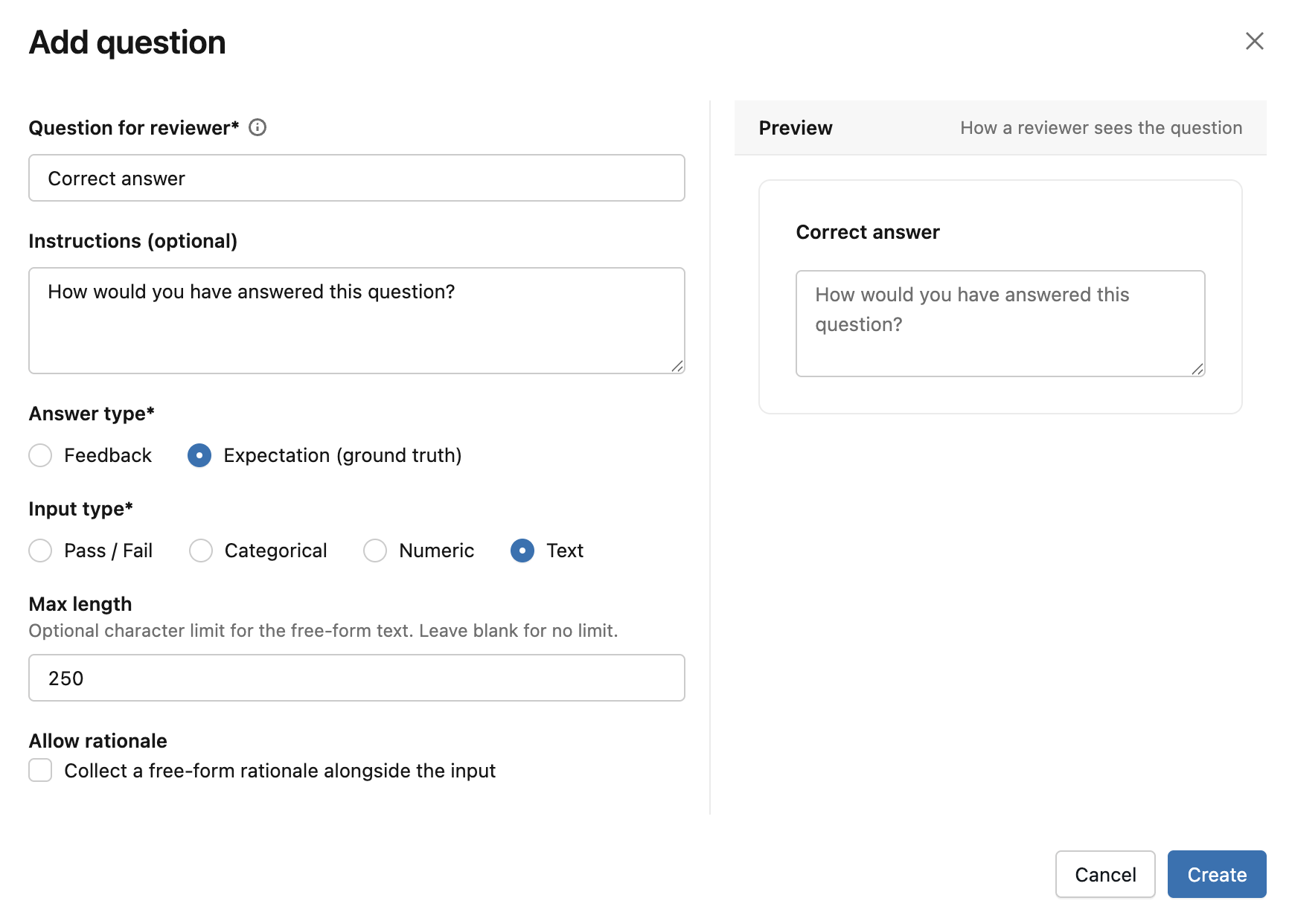
From the experiment's Review tab, open the create-queue dialog and click New question:
- Name the question.
- Pick an input type: Pass/Fail, single- or multi-select categorical, numeric, or free text.
- Optionally add an instruction shown to reviewers, and allow a free-text comment.
- Choose whether it's a feedback question (how good was the output?) or an expectation question (what should the output have been?).
Questions are defined once and reused across the queues in that experiment.
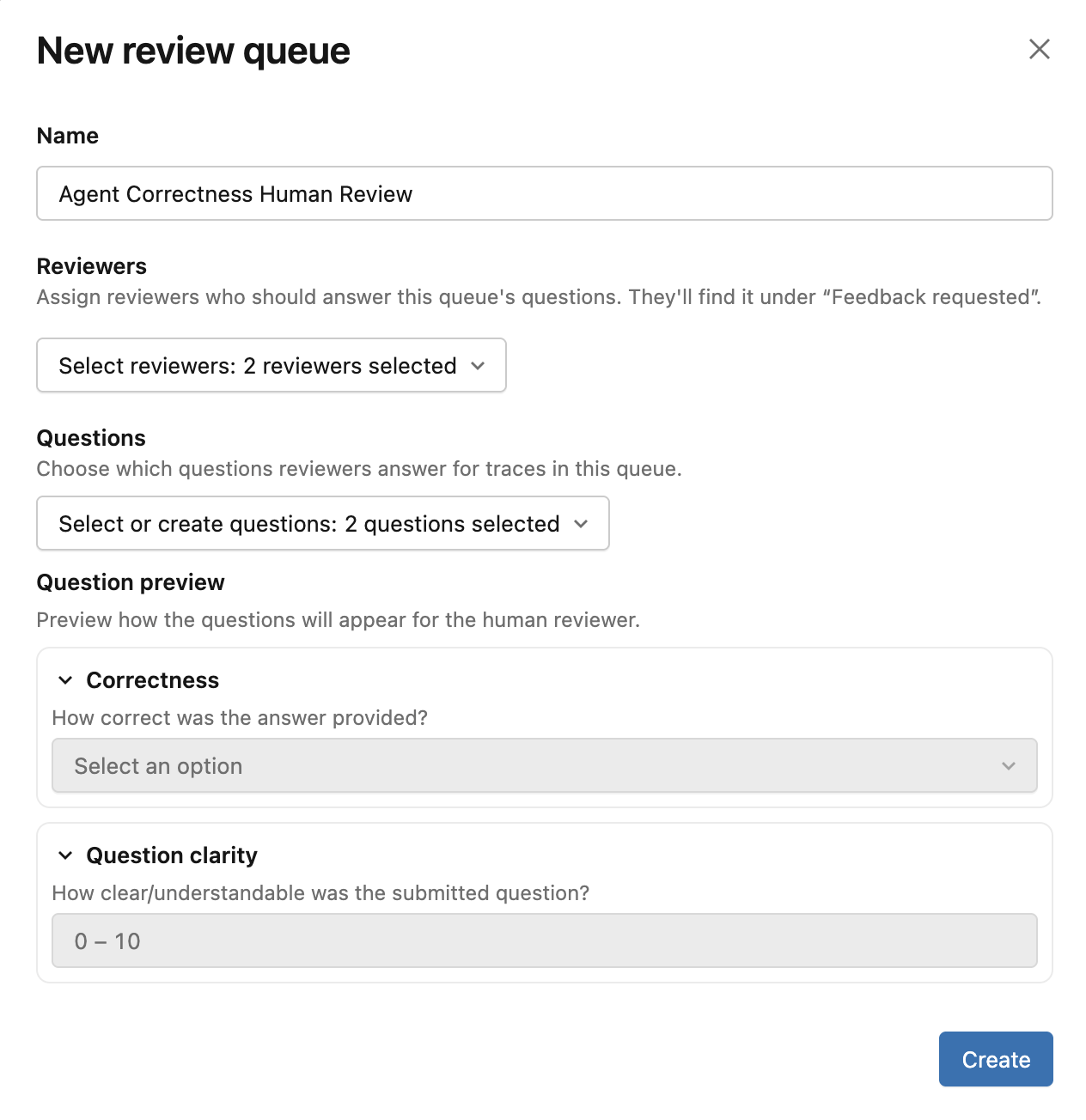
Step 2. Create the queue.
Name the queue and pick the questions it should ask, then click Create.
Step 3. Assign reviewers and add traces.
On an authenticated server, assign reviewers to the queue so it shows up in their Review tab. Add traces to the queue with Flag for review from the trace table.
Manage and track queues programmatically
The same workflow is available through the SDK, useful for automation, bulk assignment, reporting, or seeding review state. Questions are created with create_label_schema (the API uses the term label schema); queues and their items are managed with mlflow.genai.review_queues.
from mlflow.genai.label_schemas import (
    create_label_schema,
    list_label_schemas,
    InputCategorical,
    InputPassFail,
    InputText,
)
from mlflow.genai.review_queues import (
    create_review_queue,
    get_or_create_user_queue,
    add_items_to_review_queue,
    list_review_queue_items,
    set_review_queue_item_status,
)

# 1. Define questions (reused across the experiment's queues).
create_label_schema(
    name="correctness",
    type="feedback",
    input=InputPassFail(positive_label="Correct", negative_label="Incorrect"),
    instruction="Is the answer factually correct?",
    enable_comment=True,  # also let reviewers leave a free-text rationale
)
create_label_schema(
    name="expected_response",
    type="expectation",
    input=InputText(),
    instruction="What should the assistant have said?",
)

# 2. Create a custom queue with a chosen subset of questions and assigned reviewers.
#    The owner (`created_by`) is stamped by the server, not passed by the caller.
queue = create_review_queue(
    name="Hallucination review - June",
    queue_type="custom",
    schema_ids=[s.schema_id for s in list_label_schemas()],
    users=["alice@company.com", "bob@company.com"],  # auth servers only
)

# A user queue is one reviewer's personal worklist; get_or_create_user_queue is
# idempotent, the backbone of "assign these traces to this person".
personal = get_or_create_user_queue("carol@company.com")

# 3. Attach traces (idempotent; re-adding keeps the existing status).
add_items_to_review_queue(queue.queue_id, item_ids=["tr-abc123", "tr-def456"])

# 4. Track and drive review status.
pending = list_review_queue_items(queue.queue_id, status="pending")
print(f"{len(pending)} traces still to review")
set_review_queue_item_status(
    queue.queue_id,
    item_id="tr-abc123",
    status="complete",
    completed_by="alice@company.com",  # required for terminal states
)
Other available calls: update_review_queue to change a custom queue's reviewers or questions, remove_items_from_review_queue to detach traces, list_review_queues (filter by user) to find a reviewer's queues, and delete_review_queue to delete a queue (the recorded reviewer answers are left untouched).
InputCategoricalList, InputTextList, and some input options are only fully supported on Databricks-managed tracking. On Databricks, create_label_schema routes to the Databricks Review App; on open-source MLflow it uses the tracking store.
How review answers get logged to traces
A review queue never stores answers separately from your traces. Each answer is written straight onto the reviewed trace (a feedback question logs feedback, an expectation question logs the expected ground-truth value), attributed to the reviewer. Re-saving an edited answer replaces the reviewer's previous one rather than creating a duplicate. This means review output is immediately available wherever trace data is used: the trace UI, evaluation, and ground-truth datasets, with no extra export step.
Next steps
- Evaluate your app: use the collected feedback and expectations as quality signals when you run evaluation.
- Align an LLM judge: turn reviewer feedback into an aligned judge that scales human judgment to more traces.
- Build an evaluation dataset: promote ground-truth expectations into a dataset you can evaluate against.