Gemini CLI + MLflow AI Gateway
Route Gemini CLI through the MLflow AI Gateway to get centralized tracing and observability, while each developer authenticates with their own Google subscription.
Prerequisites
- MLflow server running with a SQL backend (
mlflow server --port 5000) - Gemini CLI installed (
npm install -g @google/gemini-cli)
Step 1: Create a Gemini Endpoint
Navigate to the AI Gateway tab at http://localhost:5000/#/gateway and click Gemini CLI in the quick start. Then click "create" to create an endpoint. The endpoint name is pre-filled as gemini-cli — you can change it, but make sure to use the same name in the next step.
Step 2: Configure Environment Variables
Set the following environment variables so Gemini CLI routes through the gateway and uses your endpoint:
export GOOGLE_GEMINI_BASE_URL="http://localhost:5000/gateway/proxy/gemini-cli"
export GEMINI_API_KEY="your-google-api-key"
Step 3: Run Gemini CLI
gemini
Gemini CLI authenticates using your existing Google credentials and all requests are proxied through the gateway.
What You Get
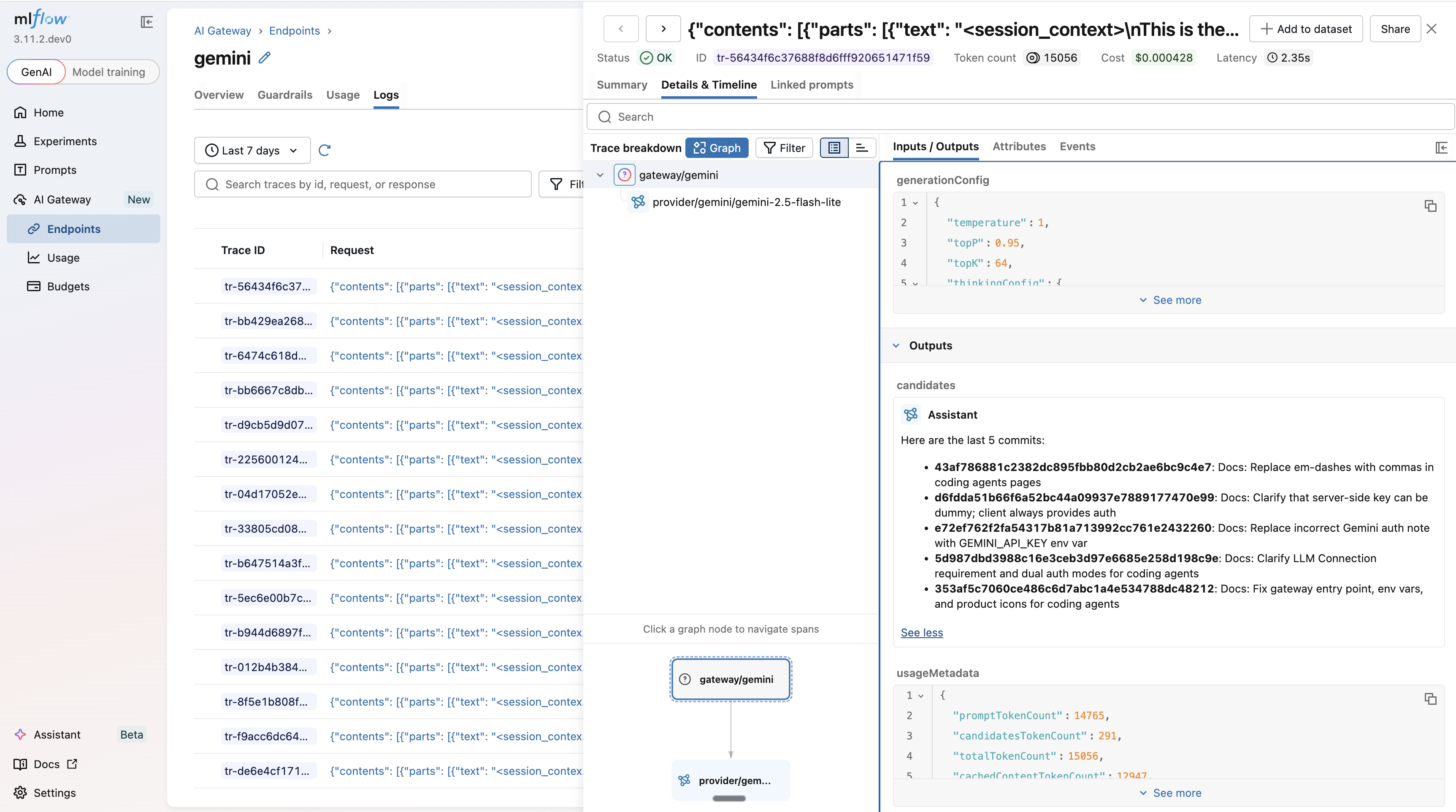
Every conversation is captured as an MLflow trace. Open the Logs tab in the MLflow UI to inspect inputs, outputs, token usage, and latency for every request.
Usage Tracking
Monitor token usage and costs across all Gemini CLI sessions
Guardrails
Add content policies to all Gemini CLI requests automatically
Budget Alerts & Limits
Set spending limits globally or per workspace to keep sessions within budget