Create and Manage Endpoints
Endpoints define how requests are routed to AI models. Each endpoint can use a single model or leverage advanced routing features like traffic splitting and fallbacks.
Accessing Endpoints
Navigate to the AI Gateway section at http://localhost:5000/#/gateway. The Endpoints tab shows all your configured endpoints.
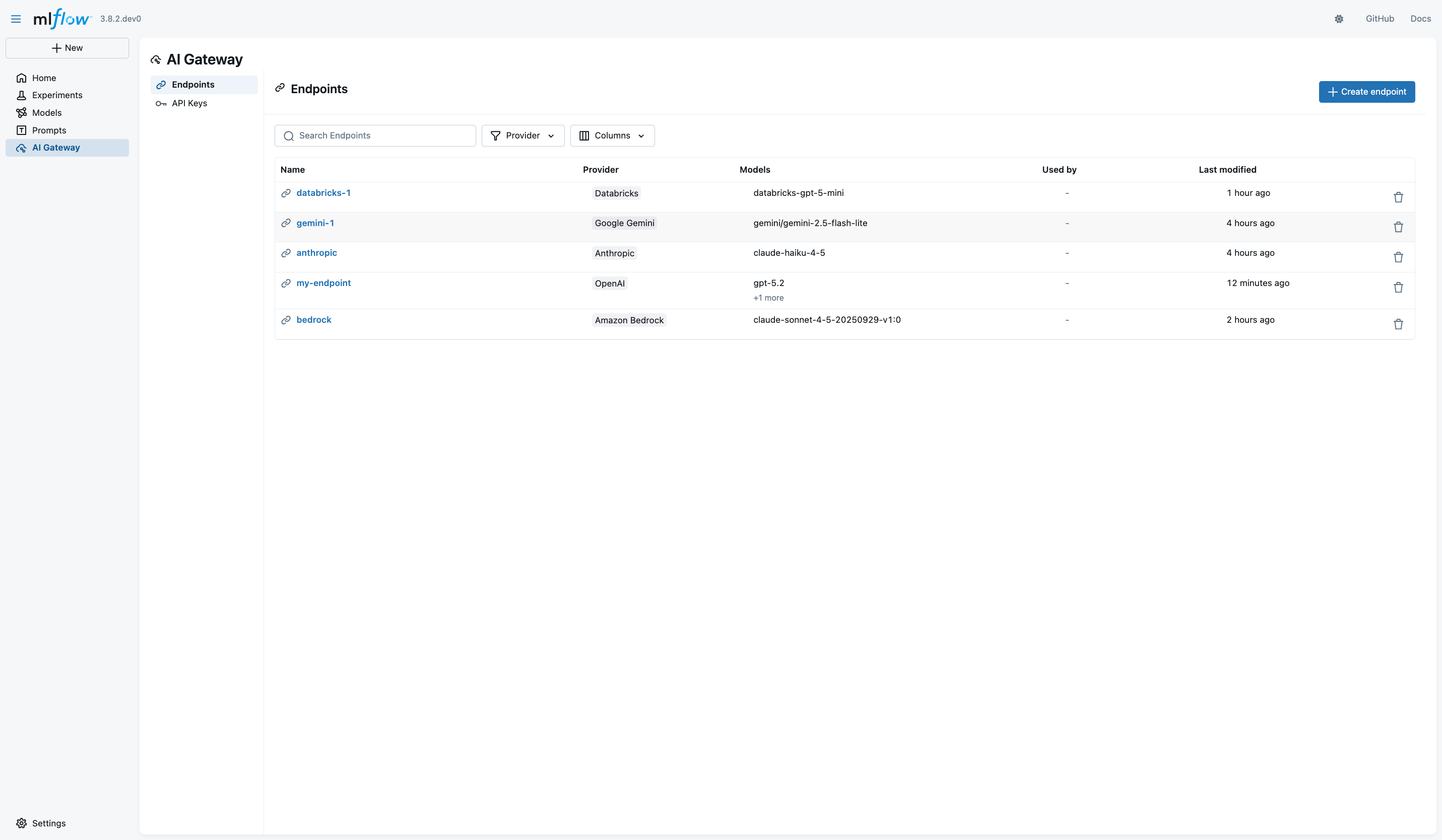
Creating an Endpoint
Basic Setup
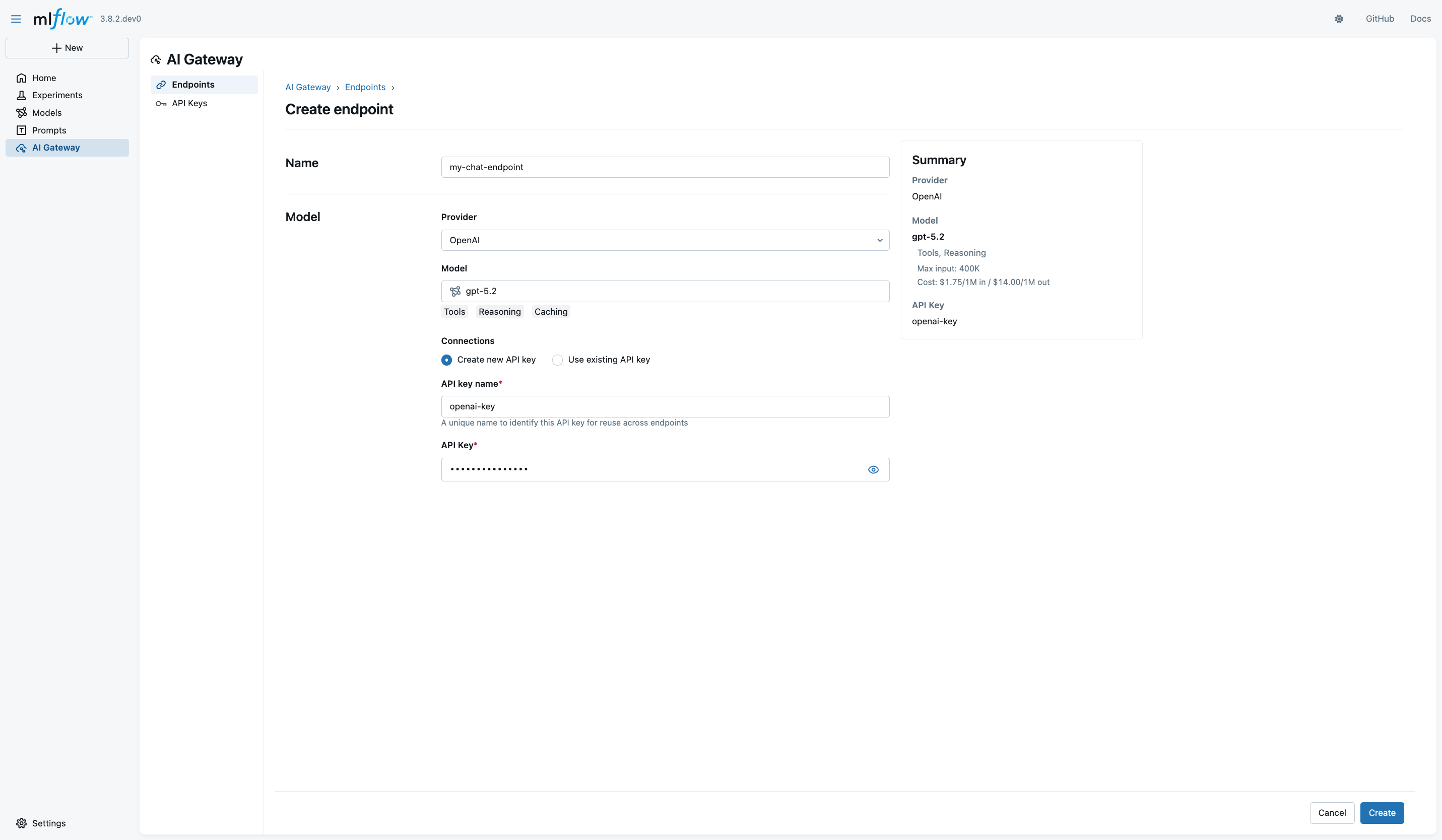
- Click Create Endpoint
- Enter a unique endpoint name (e.g.,
my-chat-endpoint)- This name becomes part of your API path:
/gateway/my-chat-endpoint/...
- This name becomes part of your API path:
- Select your provider from 100+ supported options
- Common providers (OpenAI, Anthropic, Google Gemini) appear first
- Click "View all providers" for the full LiteLLM catalog
- Choose your model
- The selector displays capability badges (Tools, Reasoning, Caching)
- Context window size and token costs are shown
- Use the search function for quick filtering
- Configure API key:
- Create new API key: Configure credentials inline (convenient for first-time setup)
- Use existing API key: Select from previously created keys (recommended for consistency)
- Review your configuration in the summary panel
- Click Create Endpoint
Advanced Routing Options
For endpoints that need traffic splitting or fallbacks, see Traffic Routing & Fallbacks.
Managing Existing Endpoints
Viewing Endpoint Details
Click on any endpoint name to view its configuration:
- Provider and model: The currently configured model
- API key: Which credentials are being used
- Traffic split: Percentage distribution across models (if configured)
- Fallbacks: Ordered list of fallback models (if configured)
Editing Endpoints
To modify an endpoint:
- Click on the endpoint name to open details
- Update the configuration as needed:
- Change the model
- Switch API keys
- Add or modify traffic splitting
- Configure fallbacks
- Changes take effect immediately with zero downtime
Deleting Endpoints
- Locate the endpoint in the list
- Click the delete action
- Confirm deletion
warning
Deleting an endpoint immediately removes it from service. Any applications using that endpoint will receive errors.
Zero-Downtime Updates
The AI Gateway supports dynamic configuration updates. You can:
- Add new endpoints without restarting the server
- Modify existing endpoint configurations
- Change API keys and credentials
- Adjust traffic splitting percentages
- Reorder fallback chains
All changes take effect immediately without disrupting running applications or requiring server restarts.