LLM Playground
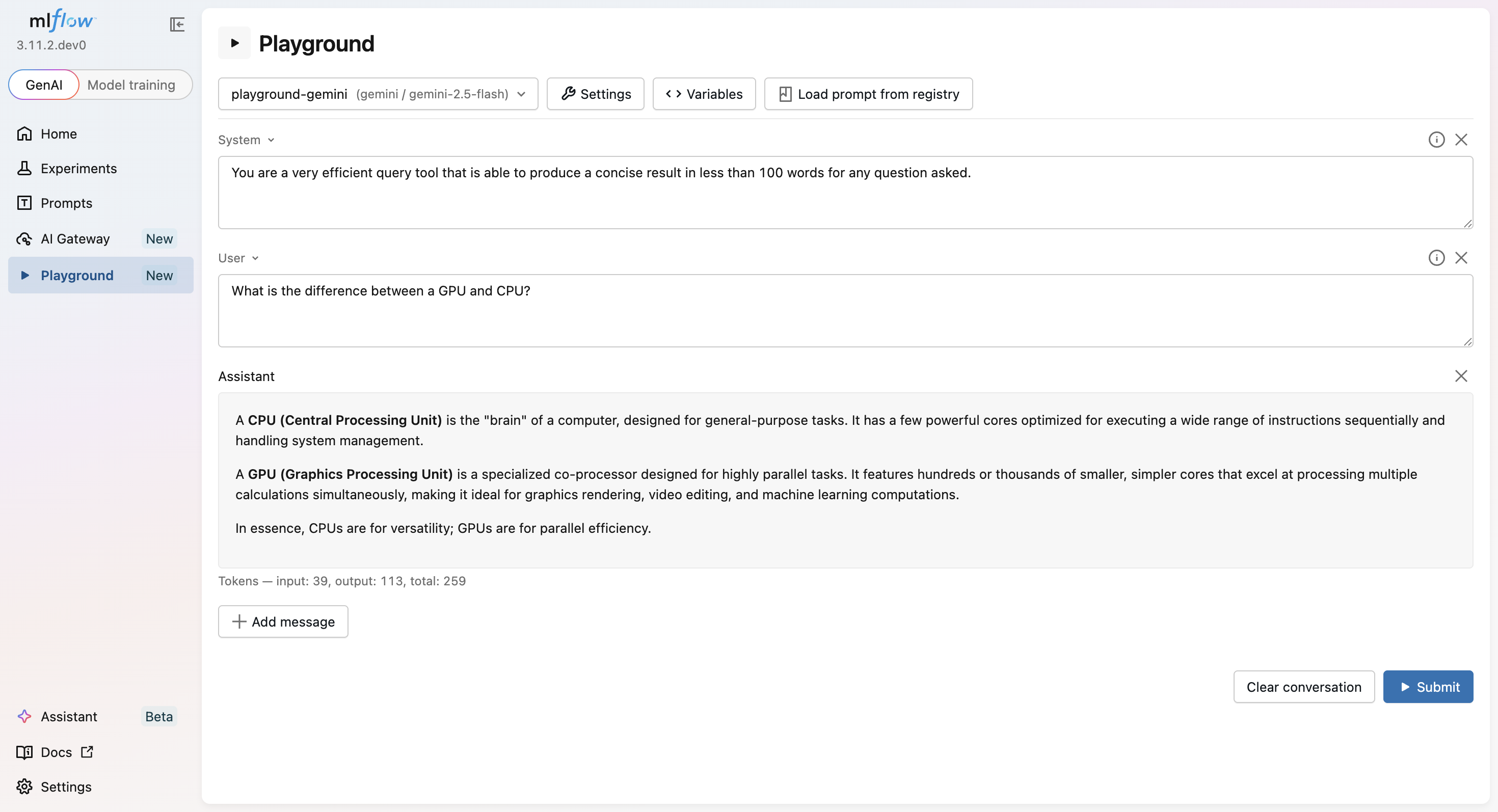
The LLM Playground is an in-browser chat surface for testing MLflow AI Gateway endpoints and prompts from the MLflow Prompt Registry without writing any code. Iterate on a system message, dial in sampling parameters, attach tools, request structured output, and replay multi-turn conversations, all from a single page in the MLflow UI.
Multi-turn Chat
Compose system, user, and assistant messages. Submitted replies are appended to the conversation so the next turn carries full context.
Sampling Parameters
Tune temperature, max_tokens, top_p, top_k, presence/frequency penalties, and stop sequences per request. Leave a field blank to use the provider's default.
Tools
Supply tool definitions and pick a tool choice strategy (auto or required) to test function-calling behavior.
Structured Output
Constrain responses to plain text, a free-form JSON object, or a strict JSON schema you paste in.
Template Variables
Use {{ variable }} placeholders inside any message. Values entered into the Variables drawer are substituted on submit, and the templates stay reusable for future runs.
Prompt Registry
Load any registered prompt version into the conversation with one click. A stored model config (model, temperature, max_tokens, response format) is applied automatically.
Prerequisites
Before opening the Playground, you need an AI Gateway chat endpoint. Follow
Create and Manage Endpoints
to register one. The Playground submits requests against the
/gateway/mlflow/v1/chat/completions route.
Quickstart
- Open the Playground entry in the left sidebar of the MLflow UI (URL path
/playground). - Click the Select an endpoint dropdown in the top bar and pick a chat endpoint.
- Type a message in the user composer. Use the role dropdown on a message to switch it to
systemorassistant, and the add/remove buttons to add more turns. - Click Submit. If anything required is missing (no endpoint, an empty message, an unfilled variable, or an invalid JSON setting), the Submit button is disabled and hovering it shows the exact list of blockers.
- On success, the assistant's reply is appended to the conversation and a fresh empty user message is added for the next turn. Submit again to continue the conversation.
- Click Clear conversation to reset the chat to a single empty user message.
If a request fails, an inline error alert appears showing the HTTP status and the response body returned by the gateway.
Settings
Parameters, Tools, and Response format live in the Settings drawer in the top bar.
Parameters
Every field is optional. Unset fields are omitted from the request, so the provider's defaults apply.
| Parameter | Type | Notes |
|---|---|---|
temperature | float | Sampling temperature. Higher values are more random. |
max_tokens | int | Maximum tokens to generate in the response. |
top_p | float | Nucleus sampling probability mass. |
top_k | int | Top-k sampling cutoff. |
presence_penalty | float | Penalize tokens already present in the context. |
frequency_penalty | float | Penalize tokens by how often they appear so far. |
stop | list[str] | Stop sequences that end generation. |
Not every provider accepts every parameter. Values the provider doesn't understand surface as a request error in the inline alert.
Tools
By default, tools are not sent with the request. Click Add tools to start defining them and pick a tool choice strategy:
- Auto (default) — the model decides whether to call one or more tools.
- Required — the model must call at least one tool.
Each tool is its own card with a Function name, an optional Function description, and a syntax-highlighted Function parameters schema editor for the function's JSON Schema (pre-filled with a minimal object schema). Use Add tool to define more and the trash icon to remove an individual tool. Every tool needs a function name and a valid parameters schema — the Submit button stays disabled (its hover popup lists the missing function name or invalid parameters schema) until each tool is complete.
Response format
The Response format section offers three modes for structured output:
- Text — natural-language output (default).
- JSON — the model returns valid JSON. Sent as
response_format: { type: "json_object" }. - JSON schema — the model output conforms to a schema you paste into the editor. The Playground submits it as
response_format: { type: "json_schema", json_schema: { name: "response_schema", schema: <your schema>, strict: true } }.
JSON schema mode requires a valid JSON object. An empty or malformed schema blocks submission and the parser error is shown inline.
Variables
Any message can include {{ variable }} placeholders. The Playground scans every message on each keystroke and exposes the detected variables in the Variables drawer. Enter a value for each one. Values are substituted at submit time, while the message templates themselves stay unchanged for reuse.
Submission is blocked until every detected variable has a non-empty value.
Loading prompts from the Prompt Registry
Click Load prompt from registry in the top bar to pick from prompts registered in the Prompt Registry:
- Chat-typed prompts populate the full conversation with their system / user / assistant turns.
- Text-typed prompts load as a single user message.
- If the prompt version has a stored model config, the matching sampling parameters and response-format settings are applied at the same time. A toast confirms
Loaded <name> v<version> with settings.
Related docs
- AI Gateway — create and manage the endpoints the Playground talks to.
- Prompt Registry — register and version the prompts you load into the Playground.