Manual Tracing
In addition to the Auto Tracing integrations, you can instrument your LLM application or AI agent by using MLflow's manual tracing APIs.
Decorator
The mlflow.trace decorator allows you to create a span for any function. This approach provides a simple yet effective way to add tracing to your code with minimal effort:
- 🔗 MLflow detects the parent-child relationships between functions, making it compatible with auto-tracing integrations.
- 🛡️ Captures exceptions during function execution and records them as span events.
- 📊 Automatically logs the function's name, inputs, outputs, and execution time.
- 🤝 Can be used alongside auto-tracing features.
- Python
- TypeScript
The @mlflow.trace decorator currently supports the following types of functions:
| Function Type | Supported |
|---|---|
| Sync | Yes |
| Async | Yes (>= 2.16.0) |
| Generator | Yes (>= 2.20.2) |
| Async Generator | Yes (>= 2.20.2) |
The following code is a minimum example of using the decorator for tracing Python functions.
To ensure complete observability, the @mlflow.trace decorator should generally be the outermost one if using multiple decorators. See Using @mlflow.trace with Other Decorators for a detailed explanation and examples.
import mlflow


@mlflow.trace(span_type="func", attributes={"key": "value"})
def add_1(x):
    return x + 1


@mlflow.trace(span_type="func", attributes={"key1": "value1"})
def minus_1(x):
    return x - 1


@mlflow.trace(name="Trace Test")
def trace_test(x):
    step1 = add_1(x)
    return minus_1(step1)


trace_test(4)
The @mlflow.trace decorator is useful when you want to trace a class method.
Decorator requires TypeScript version 5.0+ and it can only be applied to class method.
import * as mlflow from "@mlflow/core";

class MyClass {
    @mlflow.trace({ spanType: mlflow.SpanType.LLM })
    generateText(prompt: string) {
        return "It's sunny in Seattle!";
    }
}
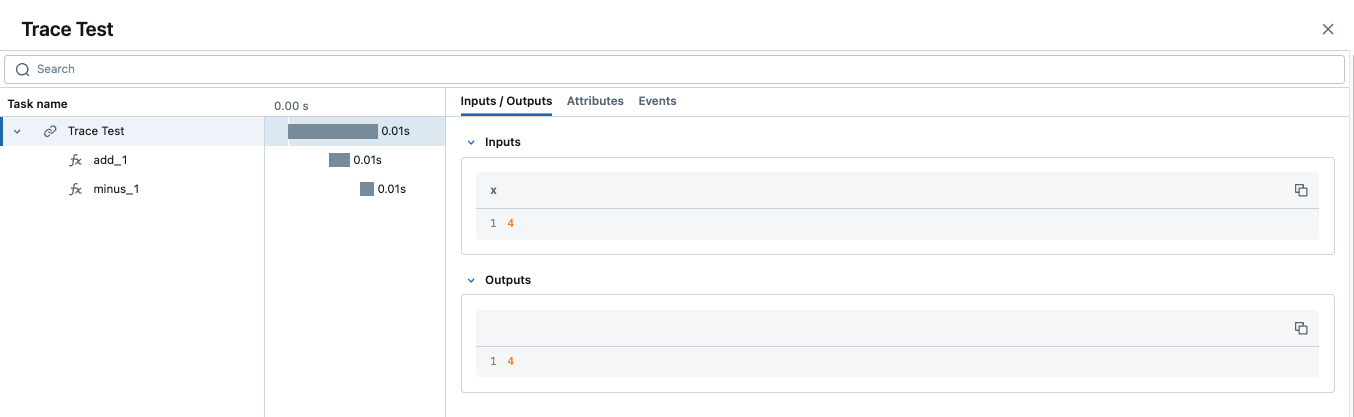
When a trace contains multiple spans with same name, MLflow appends an auto-incrementing suffix to them, such as _1, _2.
Function Wrapping
Function wrapping provides a flexible way to add tracing to existing functions without modifying their definitions. This is particularly useful when you want to add tracing to third-party functions or functions defined outside of your control. By wrapping an external function with mlflow.trace, you can capture its inputs, outputs, and execution context.
- Python
- TypeScript
When wrapping functions dynamically, the concept of "outermost" still applies. The tracing wrapper should be applied at the point where you want to capture the entire call to the wrapped function.
import math
import mlflow


def invocation(x, y, exp=2):
    # Wrap an external function from the math library
    traced_pow = mlflow.trace(math.pow)
    raised = traced_pow(x, exp)

    traced_factorial = mlflow.trace(math.factorial)
    factorial = traced_factorial(int(raised))
    return factorial


invocation(4, 2)
Named Function:
import * as mlflow from "@mlflow/core";

const getWeather = async (city: string) => {
    return `The weather in ${city} is sunny`;
};

// Wrap the function with mlflow.trace to create a traced function.
const tracedGetWeather = mlflow.trace(
    getWeather,
    { name: 'get-weather' }
);

// Invoke the traced function as usual.
await tracedGetWeather('San Francisco');
Anonymous Function:
import * as mlflow from "@mlflow/core";

const getWeather = mlflow.trace(
    (city: string) => {
        return `The weather in ${city} is sunny`;
    },
    // When wrapping an anonymous function, you need to specify the span name.
    { name: 'get-weather' }
);

// Invoke the traced function as usual.
getWeather('San Francisco');
Customizing Spans
The mlflow.trace decorator accepts following arguments to customize the span to be created:
- 🏷️
nameparameter to override the span name from the default (the name of decorated function) - 🎯
span_typeparameter to set the type of span. Set either one of built-in Span Types or a string. - 🏗️
attributesparameter to add custom attributes to the span.
- Python
- TypeScript
from mlflow.entities import SpanType


@mlflow.trace(name="call-local-llm", span_type=SpanType.LLM, attributes={"model": "gpt-4o-mini"})
def invoke(prompt: str):
    return client.invoke(messages=[{"role": "user", "content": prompt}], model="gpt-4o-mini")
import * as mlflow from "@mlflow/core";

class MyClass {
    @mlflow.trace({
        name: "call-local-llm",
        spanType: mlflow.SpanType.LLM,
        attributes: {"model": "gpt-4o-mini"}
    })
    generateText(prompt: string) {
        return "It's sunny in Seattle!";
    }
}
Alternatively, you can update the span dynamically inside the function.
- Python
- TypeScript
Use the mlflow.get_current_active_span() API.
from mlflow.entities import SpanType


@mlflow.trace(span_type=SpanType.LLM)
def invoke(prompt: str):
    model_id = "gpt-4o-mini"
    # Get the current span (created by the @mlflow.trace decorator)
    span = mlflow.get_current_active_span()
    # Set the attribute to the span
    span.set_attributes({"model": model_id})
    return client.invoke(messages=[{"role": "user", "content": prompt}], model=model_id)
Use the mlflow.getCurrentActiveSpan API.
import * as mlflow from "@mlflow/core";

class MyClass {
    @mlflow.trace({ spanType: mlflow.SpanType.LLM })
    generateText(prompt: string) {
        const modelId = "gpt-4o-mini";
        const span = mlflow.getCurrentActiveSpan();
        span?.setAttribute("model", modelId);
        return "It's sunny in Seattle!";
    }
}
Adding Trace Tags
Tags can be added to traces to provide additional metadata at the trace level. There are a few different ways to set tags on a trace. Please refer to the how-to guide for the other methods.
- Python
- TypeScript
@mlflow.trace
def my_func(x):
    mlflow.update_current_trace(tags={"fruit": "apple"})
    return x + 1
import * as mlflow from "@mlflow/core";

class MyClass {
    @mlflow.trace({ spanType: mlflow.SpanType.LLM })
    generateText(prompt: string) {
        mlflow.updateCurrentTrace({ tags: { fruit: "apple" } });
        return "It's sunny in Seattle!";
    }
}
Customizing Request and Response Previews in the UI
The Traces tab in the MLflow UI displays a list of traces, and the Request and Response columns show a preview of the end-to-end input and output of each trace. This allows you to quickly understand what each trace represents.
By default, these previews are truncated to a fixed number of characters. However, you can customize what's shown in these columns by using the request_preview and response_preview parameters. This is particularly useful for complex inputs or outputs where the default truncation might not show the most relevant information.
Below is an example of setting a custom request preview for a trace that processes a long document and user instructions, aiming to render the most relevant information in the UI's Request column:
- Python
- TypeScript
import mlflow


@mlflow.trace(name="Summarization Pipeline")
def summarize_document(document_content: str, user_instructions: str):
    # Construct a custom preview for the request column
    # For example, show beginning of document and user instructions
    request_p = f"Doc: {document_content[:30]}... Instr: {user_instructions[:30]}..."
    mlflow.update_current_trace(request_preview=request_p)

    # Simulate LLM call
    # messages = [
    #     {"role": "system", "content": "Summarize the following document based on user instructions."},
    #     {"role": "user", "content": f"Document: {document_content}\nInstructions: {user_instructions}"}
    # ]
    # completion = client.chat.completions.create(model="gpt-4o-mini", messages=messages)
    # summary = completion.choices[0].message.content
    summary = f"Summary of document starting with '{document_content[:20]}...' based on '{user_instructions}'"

    # Customize the response preview
    response_p = f"Summary: {summary[:50]}..."
    mlflow.update_current_trace(response_preview=response_p)

    return summary


# Example Call
long_document = (
    "This is a very long document that contains many details about various topics..." * 10
)
instructions = "Focus on the key takeaways regarding topic X."
summary_result = summarize_document(long_document, instructions)
import * as mlflow from "@mlflow/core";

class MyClass {
    @mlflow.trace({ name: "Summarization Pipeline" })
    summarizeDocument(documentContent: string, userInstructions: string) {
        // Construct a custom preview for the request column
        // For example, show beginning of document and user instructions
        const requestPreview = `Doc: ${documentContent.slice(0, 30)}... Instr: ${userInstructions.slice(0, 30)}...`;
        mlflow.updateCurrentTrace({ requestPreview: requestPreview });

        // Simulate LLM call
        // const messages = [
        //   { role: "system", content: "Summarize the following document based on user instructions." },
        //   { role: "user", content: `Document: ${documentContent}\nInstructions: ${userInstructions}` }
        // ];
        // const completion = await client.chat.completions.create({ model: "gpt-4o-mini", messages });
        // const summary = completion.choices[0].message.content;
        const summary = `Summary of document starting with '${documentContent.slice(0, 20)}...' based on '${userInstructions}'`;

        // Customize the response preview
        const responsePreview = `Summary: ${summary.slice(0, 50)}...`;
        mlflow.updateCurrentTrace({ responsePreview: responsePreview });

        return summary;
    }
}
By setting request_preview and response_preview on the trace (typically the root span), you control how the overall interaction is summarized in the main trace list view, making it easier to identify and understand traces at a glance.
You can attach images and audio to spans using content parts lists in set_inputs() and set_outputs():
with mlflow.start_span(name="multimodal-call") as span:
    messages = [
        {
            "role": "user",
            "content": [
                {"type": "text", "text": "What's in this image?"},
                {
                    "type": "image_url",
                    "image_url": {"url": "https://example.com/photo.png"},
                },
            ],
        }
    ]
    span.set_inputs({"messages": messages})
    result = "A photo of a cat."
    span.set_outputs({"content": result})
See Image and Audio (Multimodal) Content in Traces for more examples.
Code Block
In addition to the decorator, MLflow allows for creating a span that can then be accessed within any encapsulated arbitrary code block. It can be useful for capturing complex interactions within your code in finer detail than what is possible by capturing the boundaries of a single function.
Similarly to the decorator, the code block automatically captures parent-child relationship, exceptions, execution time, and works with auto-tracing. However, the name, inputs, and outputs of the span must be provided manually.
- Python
- TypeScript
Use the mlflow.start_span() context manager.
import mlflow

with mlflow.start_span(name="my_span") as span:
    span.set_inputs({"x": 1, "y": 2})
    z = x + y
    span.set_outputs(z)
Use the mlflow.withSpan function wrapper.
import * as mlflow from "@mlflow/core";

const result = await mlflow.withSpan(
    async (span: mlflow.Span) => {
        const x = 1;
        const y = 2;
        span.setInputs({ "x": x, "y": y });
        const z = x + y;
        span.setOutputs(z);
    },
    {
        name: "MySpan",
    }
);
Below is a slightly more complex example that uses code block in conjunction with both the decorator and auto-tracing for OpenAI.
- Python
- TypeScript
import mlflow
import openai
from mlflow.entities import SpanType

# Enable auto-tracing for OpenAI
mlflow.openai.autolog()


@mlflow.trace(span_type=SpanType.CHAIN)
def start_session():
    messages = [{"role": "system", "content": "You are a friendly chat bot"}]
    while True:
        with mlflow.start_span(name="User") as span:
            span.set_inputs(messages)
            user_input = input(">> ")
            span.set_outputs(user_input)

        if user_input == "BYE":
            break

        messages.append({"role": "user", "content": user_input})

        response = openai.OpenAI().chat.completions.create(
            model="gpt-4o-mini",
            max_tokens=100,
            messages=messages,
        )
        answer = response.choices[0].message.content
        print(f"🤖: {answer}")

        messages.append({"role": "assistant", "content": answer})


start_session()
import * as mlflow from "@mlflow/core";
import { tracedOpenAI } from "@mlflow/openai";
import { OpenAI } from "openai";
import * as readline from "readline";

const openai = tracedOpenAI(new OpenAI());

class MyClass {
    @mlflow.trace({ spanType: mlflow.SpanType.CHAIN })
    async startSession() {
        var messages: OpenAI.ChatCompletionMessageParam[] = [{"role": "system", "content": "You are a friendly chat bot"}];
        // Create readline interface for user input
        const rl = readline.createInterface({
            input: process.stdin,
            output: process.stdout
        });

        const getUserInput = (prompt: string): Promise<string> => {
            return new Promise((resolve) => {
                    rl.question(prompt, (answer) => {
                    resolve(answer);
                });
            });
        };

        while (true) {
            let userInput: string = "";

            await mlflow.withSpan(
                async (span) => {
                    span.setInputs({ messages });
                    userInput = await getUserInput(">> ");
                    span.setOutputs({ userInput });
                },
                { name: "User" }
            );

            if (userInput === "BYE") {
                break;
            }

            messages.push({ role: "user", content: userInput });

            const response = await openai.chat.completions.create({
                model: "gpt-4o-mini",
                max_tokens: 100,
                messages: messages
            });

            const answer = response.choices[0].message.content || "";
            console.log(`🤖: ${answer}`);

            messages.push({ role: "assistant", content: answer });
        }

        rl.close();
    }
}

const myClass = new MyClass();
myClass.startSession();
Automatic Exception Handling
If an Exception is raised during processing of a trace-instrumented operation, an indication will be shown within the UI that the invocation was not successful and a partial capture of data will be available to aid in debugging. Additionally, details about the Exception that was raised will be included within Events of the partially completed span, further aiding the identification of where issues are occurring within your code.
The below documentation applies only to the MLflow Python SDK.
Using @mlflow.trace with Other Decorators
When applying multiple decorators to a single function, decorator order matters. For custom decorators (e.g., timing, logging), place @mlflow.trace as the outermost decorator (the one at the very top). This ensures that MLflow can capture the entire execution of the function, including the behavior of any inner decorators.
Exception for framework route decorators: For web frameworks (Flask, FastAPI, etc.), the order is reversed—the framework decorator (e.g., @app.route, @app.post) should be outermost, and @mlflow.trace should be the inner decorator. This ensures the framework registers the trace-instrumented function. See Production Tracing for examples.
If @mlflow.trace is not in the correct position for your decorator type, its visibility into the function's execution may be limited or incorrect, potentially leading to incomplete traces or misrepresentation of the function's inputs, outputs, and execution time.
Consider the following conceptual example for decorators:
- Python
import mlflow
import functools
import time


# A hypothetical additional decorator
def simple_timing_decorator(func):
    @functools.wraps(func)
    def wrapper(*args, **kwargs):
        start_time = time.time()
        result = func(*args, **kwargs)
        end_time = time.time()
        print(
            f"{func.__name__} executed in {end_time - start_time:.4f} seconds by simple_timing_decorator."
        )
        return result

    return wrapper


# Correct order: @mlflow.trace is outermost
@mlflow.trace(name="my_decorated_function_correct_order")
@simple_timing_decorator
def my_complex_function(x, y):
    # Function logic here
    time.sleep(0.1)  # Simulate work
    return x + y


# Incorrect order: @mlflow.trace is NOT outermost
@simple_timing_decorator
@mlflow.trace(name="my_decorated_function_incorrect_order")
def my_other_complex_function(x, y):
    time.sleep(0.1)
    return x * y


# Correct order for web framework: @mlflow.trace is NOT outermost
@another_web_framework_decorator  # e.g., @app.route("/mypath") from Flask
@mlflow.trace(name="my_decorated_function_correct_order")
def my_web_framework_function(x, y):
    # Function logic here
    time.sleep(0.1)  # Simulate work
    return x + y


# Incorrect order for web framework: @mlflow.trace is outermost
@mlflow.trace(name="my_decorated_function_incorrect_order")
@another_web_framework_decorator  # e.g., @app.route("/mypath") from Flask
def my_other_web_framework_function(x, y):
    time.sleep(0.1)
    return x * y


# Example calls
if __name__ == "__main__":
    print("Calling function with correct decorator order:")
    my_complex_function(5, 3)

    print("\nCalling function with incorrect decorator order:")
    my_other_complex_function(5, 3)
In the my_complex_function example (correct order for custom decorators), @mlflow.trace will capture the full execution, including the time added by simple_timing_decorator. In my_other_complex_function (incorrect order), the trace captured by MLflow might not accurately reflect the total execution time or could miss modifications to inputs/outputs made by simple_timing_decorator before @mlflow.trace sees them. For web framework route decorators, in the my_web_framework_function example (correct order), the web framework registers the trace-instrumented function so requests will be properly traced. In my_other_web_framework_function (incorrect order), the web framework registers the raw function without MLflow tracing, so traces may not be captured.
Streaming
The @mlflow.trace decorator can be used to trace functions that return a generator or an iterator, since MLflow 2.20.2.
- Python
@mlflow.trace
def stream_data():
    for i in range(5):
        yield i
The above example will generate a trace with a single span for the stream_data function. By default, MLflow will capture all elements yielded by the generator as a list in the span's output. In the example above, the output of the span will be [0, 1, 2, 3, 4].
A span for a stream function will start when the returned iterator starts to be consumed, and will end when the iterator is exhausted, or an exception is raised during the iteration.
If you want to aggregate the elements to be a single span output, you can use the output_reducer parameter to specify a custom function to aggregate the elements. The custom function should take a list of yielded elements as inputs.
- Python
@mlflow.trace(output_reducer=lambda x: ",".join(x))
def stream_data():
    for c in "hello":
        yield c
In the example above, the output of the span will be "h,e,l,l,o". The raw chunks can still be found in the Events tab of the span.
The following is an advanced example that uses the output_reducer to consolidate ChatCompletionChunk output from an OpenAI LLM into a single message object.
Of course, we recommend using the auto-tracing for OpenAI for examples like this, which does the same job but with one-liner code. The example below is for demonstration purposes.
- Python
import mlflow
import openai
from openai.types.chat import *
from typing import Optional


def aggregate_chunks(outputs: list[ChatCompletionChunk]) -> Optional[ChatCompletion]:
    """Consolidate ChatCompletionChunks to a single ChatCompletion"""
    if not outputs:
        return None

    first_chunk = outputs[0]
    delta = first_chunk.choices[0].delta
    message = ChatCompletionMessage(
        role=delta.role, content=delta.content, tool_calls=delta.tool_calls or []
    )
    finish_reason = first_chunk.choices[0].finish_reason
    for chunk in outputs[1:]:
        delta = chunk.choices[0].delta
        message.content += delta.content or ""
        message.tool_calls += delta.tool_calls or []
        finish_reason = finish_reason or chunk.choices[0].finish_reason

    base = ChatCompletion(
        id=first_chunk.id,
        choices=[Choice(index=0, message=message, finish_reason=finish_reason)],
        created=first_chunk.created,
        model=first_chunk.model,
        object="chat.completion",
    )
    return base


@mlflow.trace(output_reducer=aggregate_chunks)
def predict(messages: list[dict]):
    stream = openai.OpenAI().chat.completions.create(
        model="gpt-4o-mini",
        messages=messages,
        stream=True,
    )
    for chunk in stream:
        yield chunk


for chunk in predict([{"role": "user", "content": "Hello"}]):
    print(chunk)
In the example above, the generated predict span will have a single chat completion message as the output, which is aggregated by the custom reducer function.
Multi Threading
MLflow Tracing is thread-safe, traces are isolated by default per thread. But you can also create a trace that spans multiple threads with a few additional steps.
MLflow uses Python's built-in ContextVar mechanism to ensure thread safety, which is not propagated across threads by default. Therefore, you need to manually copy the context from the main thread to the worker thread, as shown in the example below.
- Python
import contextvars
from concurrent.futures import ThreadPoolExecutor, as_completed
import mlflow
from mlflow.entities import SpanType
import openai

client = openai.OpenAI()

# Enable MLflow Tracing for OpenAI
mlflow.openai.autolog()


@mlflow.trace
def worker(question: str) -> str:
    messages = [
        {"role": "system", "content": "You are a helpful assistant."},
        {"role": "user", "content": question},
    ]
    response = client.chat.completions.create(
        model="gpt-4o-mini",
        messages=messages,
        temperature=0.1,
        max_tokens=100,
    )
    return response.choices[0].message.content


@mlflow.trace
def main(questions: list[str]) -> list[str]:
    results = []
    # Almost same as how you would use ThreadPoolExecutor, but two additional steps
    #  1. Copy the context in the main thread using copy_context()
    #  2. Use ctx.run() to run the worker in the copied context
    with ThreadPoolExecutor(max_workers=2) as executor:
        futures = []
        for question in questions:
            ctx = contextvars.copy_context()
            futures.append(executor.submit(ctx.run, worker, question))
        for future in as_completed(futures):
            results.append(future.result())
    return results


questions = [
    "What is the capital of France?",
    "What is the capital of Germany?",
]

main(questions)
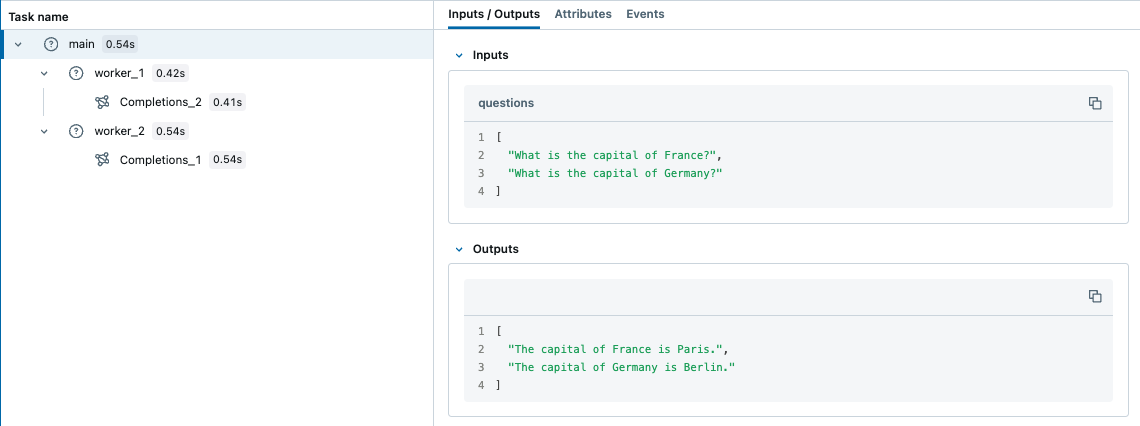
In contrast, ContextVar is copied to async tasks by default. Therefore, you don't need to manually copy the context when using asyncio, which might be an easier way to handle concurrent I/O-bound tasks in Python with MLflow Tracing.
Async Support
The @mlflow.trace decorator works seamlessly with async functions:
- Python
import asyncio
import mlflow


@mlflow.trace
async def async_operation(data: str) -> str:
    # Simulate async work
    await asyncio.sleep(0.1)
    return f"Processed: {data}"


@mlflow.trace
async def async_pipeline(items: list[str]) -> list[str]:
    results = []
    for item in items:
        result = await async_operation(item)
        results.append(result)
    return results


# Run the async pipeline
asyncio.run(async_pipeline(["item1", "item2", "item3"]))