Tracing Omnigent
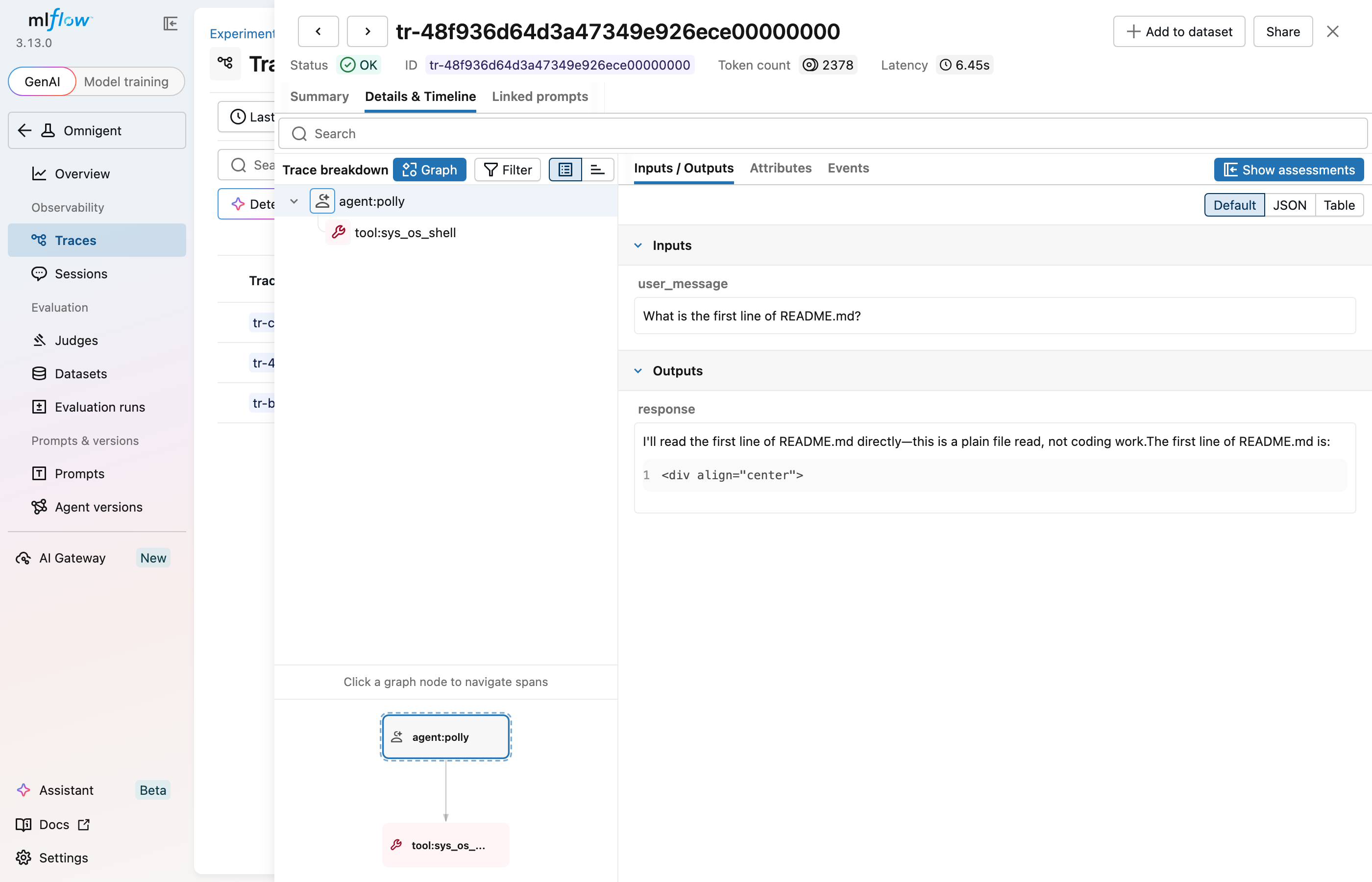
MLflow Tracing provides automatic tracing for Omnigent, a multi-harness AI agent orchestration platform. Omnigent natively emits OpenTelemetry traces via MLflow's tracing SDK, so after setup MLflow will automatically capture traces of your Omnigent agent sessions including:
- Agent turns with user prompts and assistant responses
- Tool invocations with arguments, results, and duration
- Per-turn token usage (input, output, cache read/write)
- Session metadata (response ID, model, agent name)
Omnigent is an agent orchestration platform that supports multiple execution harnesses (Claude Agent SDK, OpenAI Agents, Codex, Databricks, and more) behind a unified API. It provides policy enforcement, credential management, and observability across all harness types.
Setup
Install Omnigent and MLflow, then configure your export target.
Install Omnigent and MLflow
uv pip install omnigent mlflow
Start the MLflow Tracking Server
Start an MLflow server to receive and display traces:
mlflow server --port 5000
Or use Docker Compose:
docker compose up -d
Configure Environment Variables
Set the following environment variables on the host machine (the machine running omnigent run or omnigent host):
export OMNIGENT_TELEMETRY_ENABLED=true
export OTEL_EXPORTER_OTLP_ENDPOINT="http://localhost:5000"
export OTEL_EXPORTER_OTLP_PROTOCOL="http/protobuf"
export OTEL_EXPORTER_OTLP_TRACES_HEADERS="x-mlflow-experiment-id=1"

# Optional: suppress internal HTTP call spans
export OMNIGENT_OTEL_HTTP_CLIENT_INSTRUMENTATION=false
Tracing runs in the runner/harness process on the host side, not the server. Set these variables where you run omnigent run or omnigent host, not where the server is deployed.
Start Omnigent
Start Omnigent as usual. Traces are emitted automatically for every agent session.
omnigent run
How It Works
Omnigent uses MLflow's tracing SDK to emit structured spans in a hierarchy that mirrors the agent execution:
agent:<name>         (AGENT)       — user message, response, token usage
├── tool:<name>      (TOOL)        — arguments, result, duration
├── tool:<name>      (TOOL)
└── ...
Deterministic Trace ID
Omnigent response IDs use the format resp_<32-char hex>. The hex suffix is reused as the W3C trace ID, so operators can look up a trace by its response ID — just strip the resp_ prefix and paste the hex into any trace backend's search UI. No lookup table needed.
Configuration Reference
| Variable | Purpose | Default |
|---|---|---|
OMNIGENT_TELEMETRY_ENABLED | Master opt-in — must be true to enable any tracing | false |
OTEL_EXPORTER_OTLP_ENDPOINT | OTLP collector endpoint (e.g. your MLflow server URL) | unset |
OTEL_EXPORTER_OTLP_PROTOCOL | OTLP transport (grpc or http/protobuf) | grpc |
OTEL_EXPORTER_OTLP_TRACES_HEADERS | Headers for trace OTLP requests (e.g. x-mlflow-experiment-id=1 to route to a specific MLflow experiment) | unset |
OMNIGENT_OTEL_HTTP_CLIENT_INSTRUMENTATION | Set to false to suppress internal HTTP call spans from appearing alongside agent traces | true |
Monitoring Token Usage
MLflow automatically tracks token usage for each agent turn within Omnigent sessions. Token counts — including cache read and cache creation breakdowns — are logged on the agent span. Aggregated cost and time trends are displayed in the built-in experiment dashboard.
See Token Usage and Cost Tracking for details on accessing this information programmatically.
Troubleshooting
Tracing not working:
- Verify
OMNIGENT_TELEMETRY_ENABLED=trueis set — tracing is off by default - Check that
OTEL_EXPORTER_OTLP_ENDPOINTis set on the host machine (not the server) - Confirm the MLflow tracking server is reachable from the host machine
- Check host logs (
~/.omnigent/logs/host-runner/) foromnigent telemetry initializedto confirm the OTel provider started
Missing traces:
- Traces are exported asynchronously. If the server shuts down abruptly, buffered spans may be lost.
- Check server logs for MLflow initialization warnings.
Content not appearing on spans:
- Message content is opt-in. Set
OMNIGENT_OTEL_CAPTURE_CONTENT=trueto include user messages and tool results on spans. This is disabled by default because messages may contain PII or secrets.
Next Steps
Track User Feedback
Record user feedback on traces for tracking user satisfaction.
Search Traces
Search and filter traces to find specific agent sessions.
Evaluate Traces
Evaluate traces with LLM judges to understand and improve your AI application's behavior.