Deploying MLflow to Google Cloud platform
MLflow core components include:
- MLflow server: This is the Python backend for experiment tracking, model registry management, tracing for LLM observability, job scheduling, and AI Gateway endpoints.
- Backend store: The database in which entity metadata (e.g. trace info, experiment tracking metadata) is stored.
- Artifact store: Blob storage for larger pieces of persisted data (e.g. model weights, trace span data).
This guide walks you through deploying the MLflow server to Google Cloud Run, the backend store to Cloud SQL (PostgreSQL), and the artifact store to Google Cloud Storage (GCS). The guide also covers IAM service accounts, Cloud SQL connectivity, and Cloud Run networking settings. Once deployment is complete, you can access the MLflow web UI through a Cloud Run service URL such as: https://mlflow-<unique-id>.<region>.run.app. Your MLflow client code can connect to the MLflow server by setting the tracking URI to this URL.
The overall deployment architecture is as follows:
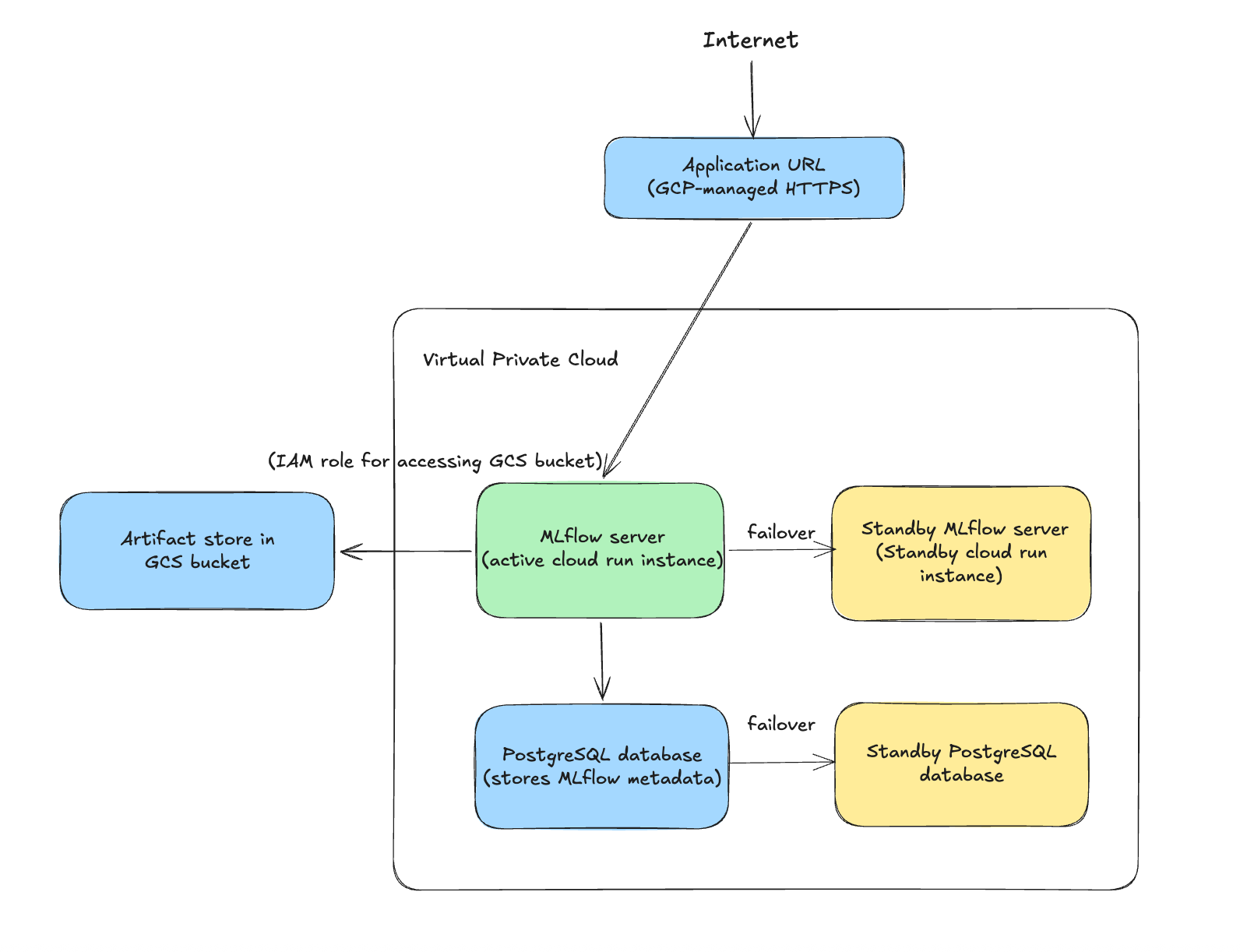
The deployment architecture has a couple of advantages:
-
High Availability
- Cloud Storage (GCS) provides highly durable and globally distributed object storage for MLflow artifacts. Data is replicated across multiple zones within the selected region or multi-region location.
- Cloud SQL (PostgreSQL) supports automated backups and high-availability configurations with automatic failover to a standby instance in another zone, reducing downtime for the MLflow backend store.
- Cloud Run is a fully managed serverless platform that automatically restarts failed containers and scales the MLflow service based on incoming requests, ensuring high availability without manual infrastructure management.
-
Security by design
- Cloud Run endpoints are automatically served over HTTPS, ensuring secure communication between MLflow clients and the server.
- The Google Cloud storage bucket blocks public access, and the MLflow server running in Cloud Run accesses the artifact store securely through a service account with the "Storage Object User" role.
- Cloud Run can connect to Cloud SQL using the built-in Cloud SQL integration or via the Cloud SQL Auth Proxy mechanism, avoiding the need to expose the database publicly.
- The architecture can integrate with MLflow authentication configurations.
-
Operational Simplicity
- Serverless Compute (Cloud Run), no virtual machines to manage, patch, or scale manually.
- Managed Database (Cloud SQL): Automated backups, patching, and failover.
- Managed Object Storage (Cloud Storage): Highly scalable and durable storage for MLflow artifacts, eliminating the need to manage scalable storage infrastructure.
Step 1: Create a docker image and upload it to GCP:
Build a docker image using the following Dockerfile:
FROM ghcr.io/mlflow/mlflow:<mlflow-version>-full

RUN pip install google-cloud-storage
The <mlflow-version> in the Dockerfile is a value like v3.10.0.
This docker image is based on the official MLflow docker image, but preinstalls "google-cloud-storage" package which is required by MLflow server to access Google Cloud storage.
In Google Cloud "Artifact Registry" console, create a repository with name of "mlflow-repo", set the repository format to "Docker", the repository path is like <region>-docker.pkg.dev/<gcp-project-name>/mlflow-repo, then build the above docker image and push it to the Google docker repository as follows:
docker build -t <google-docker-repository-path>/mlflow-gcp:v3.10.0 .

docker push <google-docker-repository-path>/mlflow-gcp:v3.10.0
Step 2: Create a bucket in Google Cloud Storage
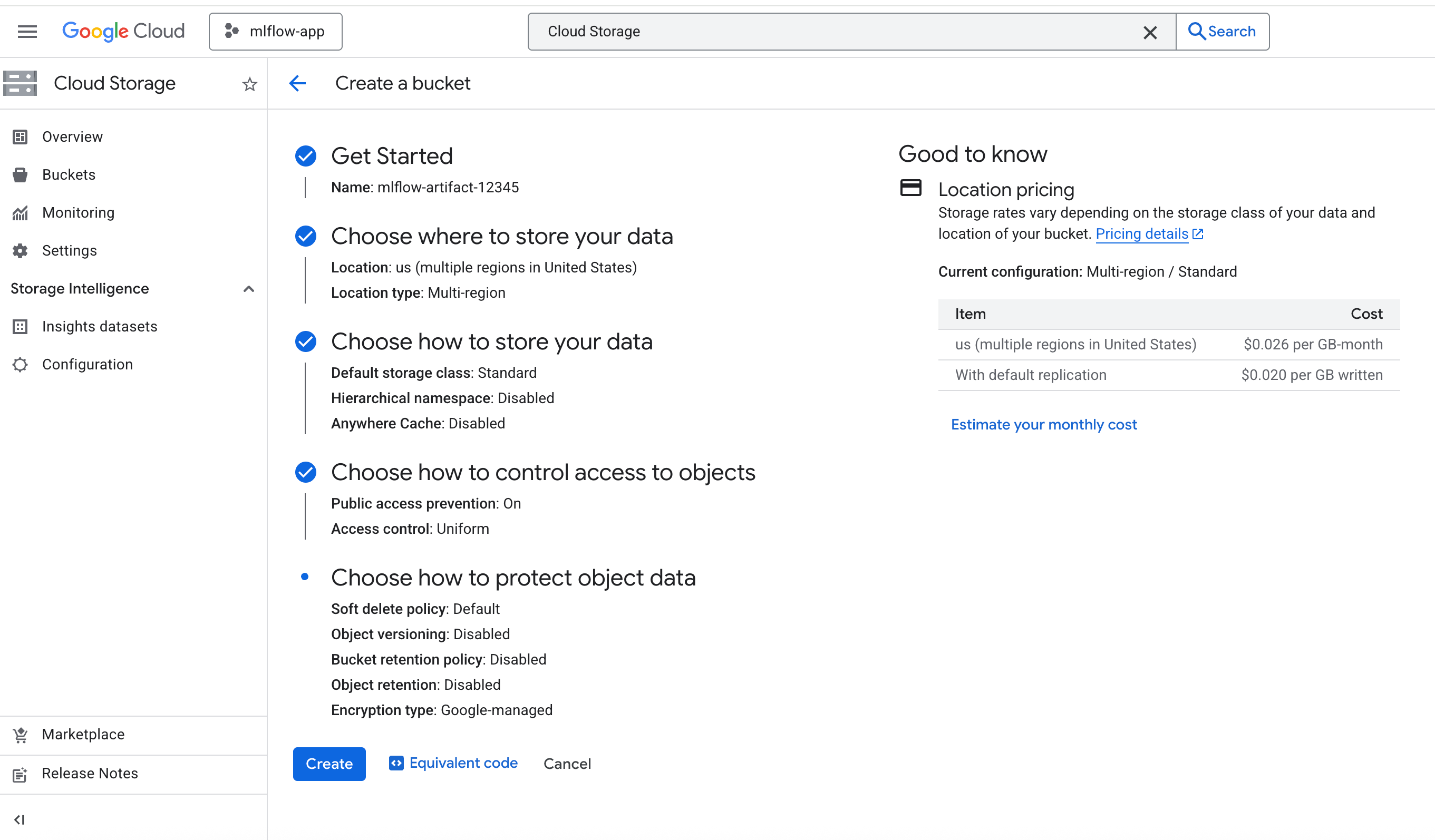
In Google Cloud "Cloud Storage" console, create a bucket with name like "mlflow-artifact-12345" as follows, note that you should turn on "Public access prevention" option to block public access to the bucket.
Step 3: Grant user role to the default compute service account
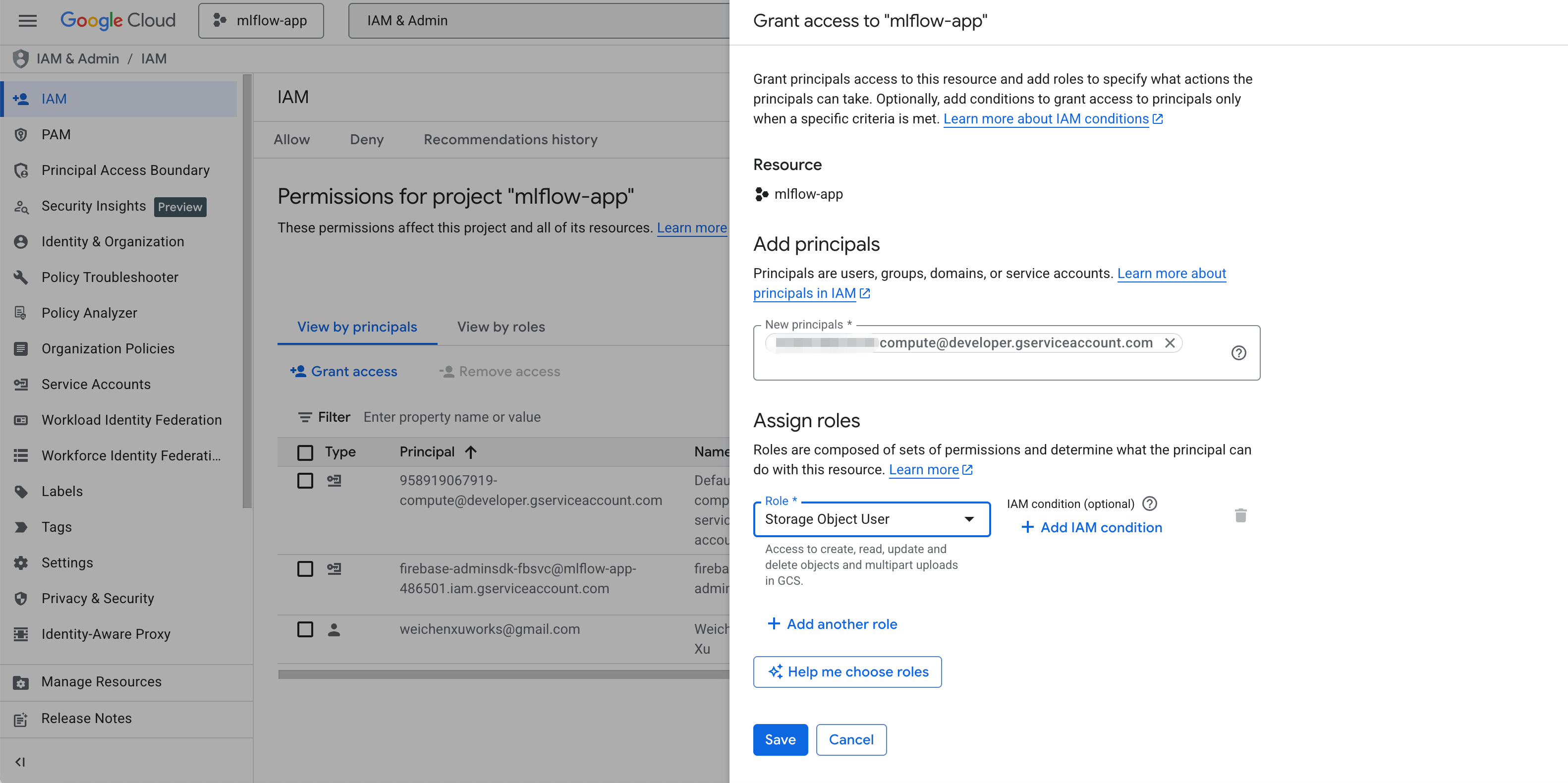
In Google Cloud "IAM & Admin" console, click "grant access", then assign the "Storage Object User" role to the default compute service account as follows:
Step 4: Create cloud SQL instance
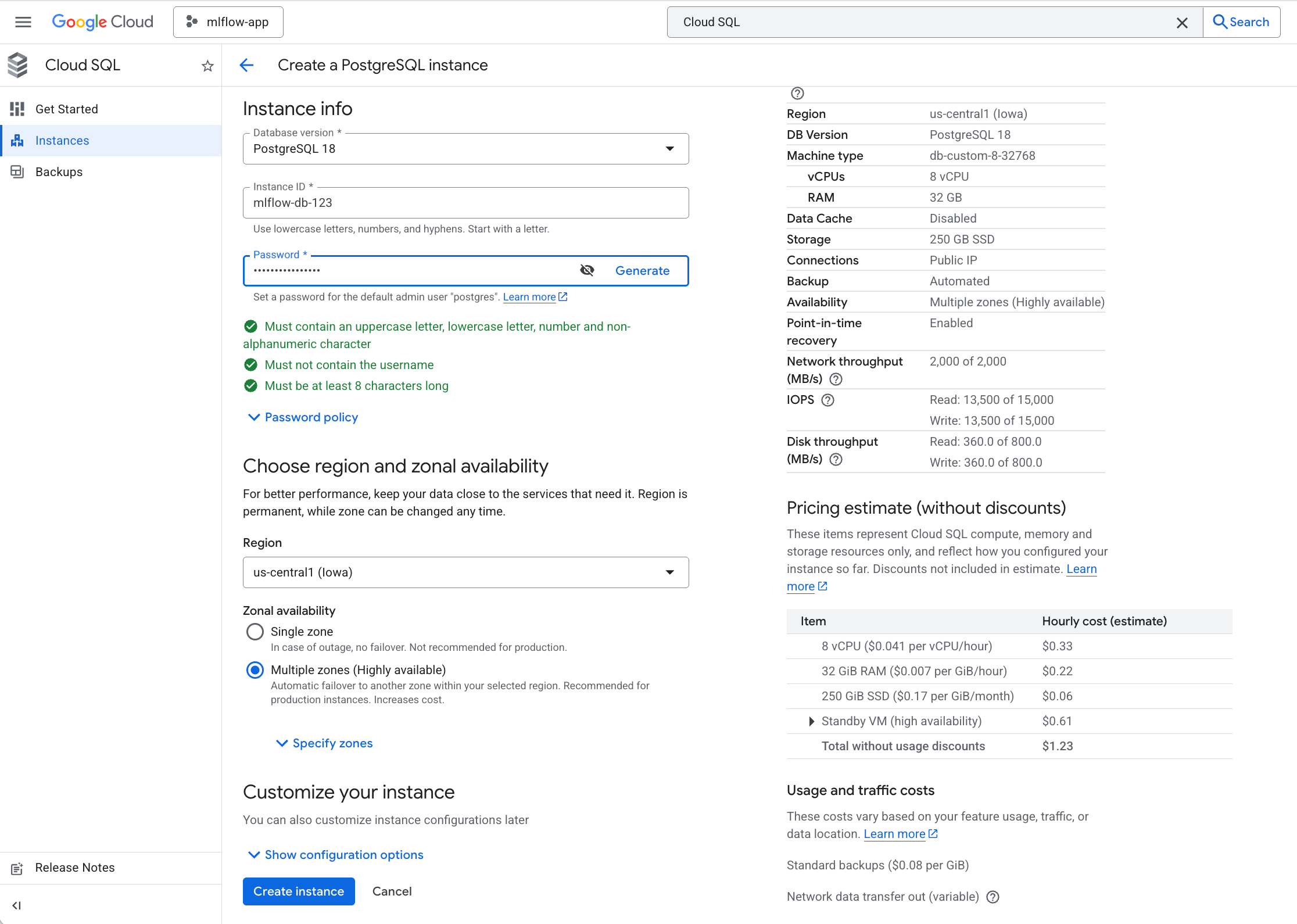
In Google Cloud "Cloud SQL" console, click "Create an instance" button to create a "PostgreSQL" instance as follows:
The database connection string used by MLflow is like:
postgresql://<admin-name>:<admin-password>@/<database-name>?host=/cloudsql/<gcp-project-name>:us-central1:<cloud-sql-instance-id>
The default values of "admin-name" and "database-name" are both "postgres".
Step 5: Create Cloud Run instance
In Google Cloud "Cloud Run" console, click "Deploy container" button to create a cloud run instance. You need to configure the following items correctly:
- Container image URL: Select the "mlflow-gcp" image that you pushed to the Google docker repository.
- Service scaling: set both minimum and maximum number of instances to 1.
- Ingress: All (Allow direct access to your service from the internet)
- Container port: 5000
- Container command: mlflow
- Container arguments:
server --backend-store-uri <database-connection-string> --artifacts-destination gs://<cloud-storage-bucket-name> --host 0.0.0.0 --port 5000 --disable-security-middleware - Resources: at least 2GiB memory and 1 CPU.
- Cloud SQL connections: Click "Add connection" button and add the connection to the cloud SQL instance that is created in "Step 4".
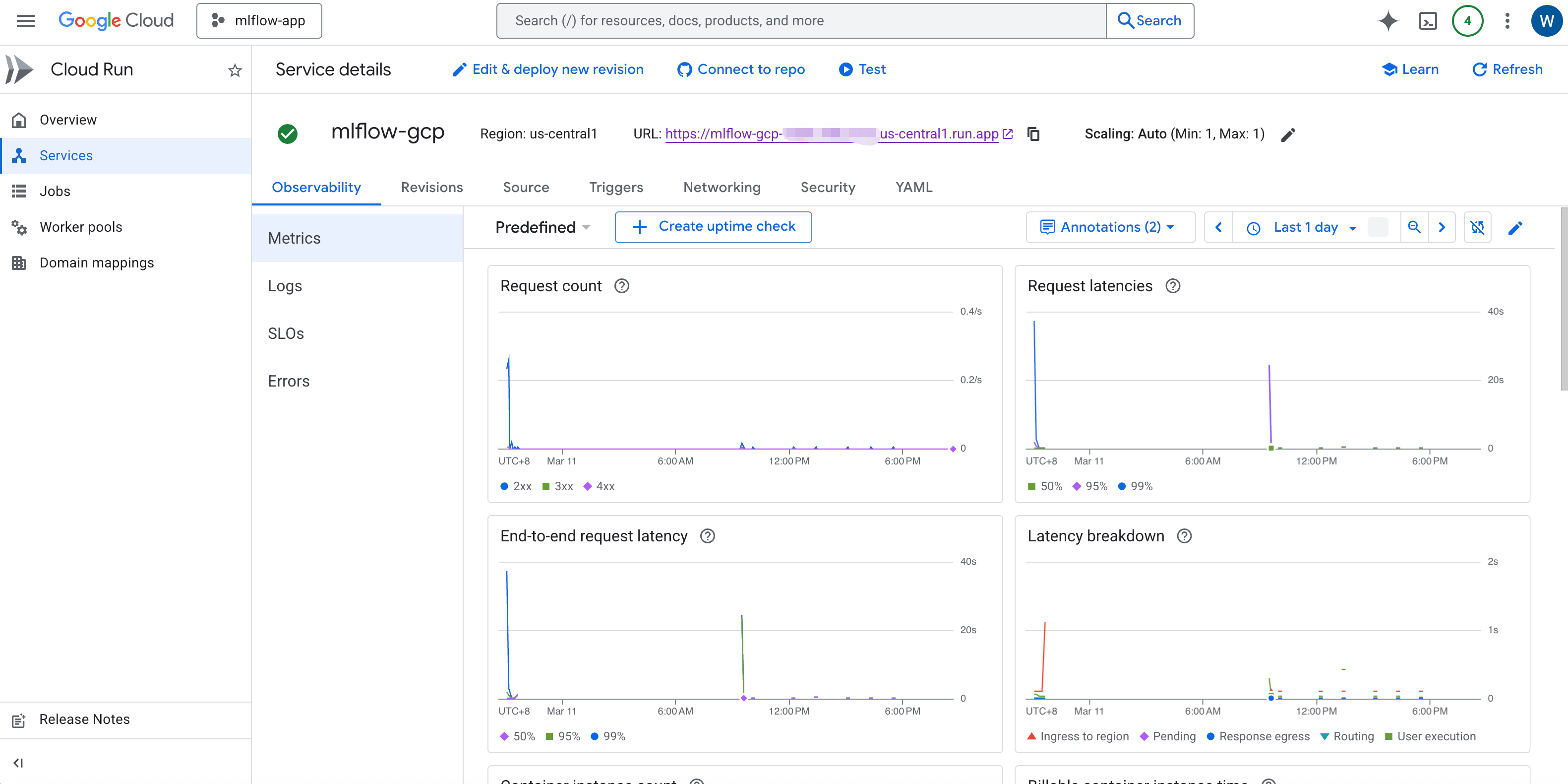
After created the cloud run instance, you can view the application URL like https://<instance-name>-<unique-id>.<region>.run.app on the instance console page, and you can also view the instance metrics and logs as follows:
Integration with MLflow authentication
MLflow supports basic authentication and authentication with OIDC plugin, the 2 kinds of authentication settings require:
- Additional pip packages: preinstall them in the
mlflow-gcpimage in "Step 1". - Additional environment variable settings: Set them as the environment variables in the container's "Variables & Secrets" settings.
- Additional mlflow server CLI options: Append them in the "Container arguments" setting.
Step 6: Validate the deployment
Use MLflow demo CLI to validate the deployment. Run the command from your own laptop as follows:
mlflow demo --tracking-uri <GCP-cloud-run-application-URL>
then open the application URL in your browser, view the experiment with name "MLflow Demo", and explore GenAI features like traces, evaluation runs, prompt management etc.